How to track app installs
Promoting a phone app? Forward every install from AppsFlyer, Adjust or Branch to us in three steps: with every status on the page explained.
By Nora Ellis, Affiliate Marketing & Creator Economy Writer · with Wooly Network, Advertiser Success · 3 September 2026 · 9 min · Tracking & Attribution
If what you are promoting is a phone app, nothing on your website can tell us when someone installs it. The install happens inside the App Store or on Google Play, where no tracking tag of ours can run. Your mobile measurement partner (AppsFlyer, Adjust or Branch) is the one who sees it, so the whole job in this section is to tell that partner to forward every install to us, once.
It takes about ten minutes and it is three steps. This guide walks all three, explains every status you will see on the way, and shows you exactly what a correct answer looks like so you can tell it apart from a problem.
Selling on a website instead? You do not need any of this; install your tracking tag and you are done.
How an install gets credited
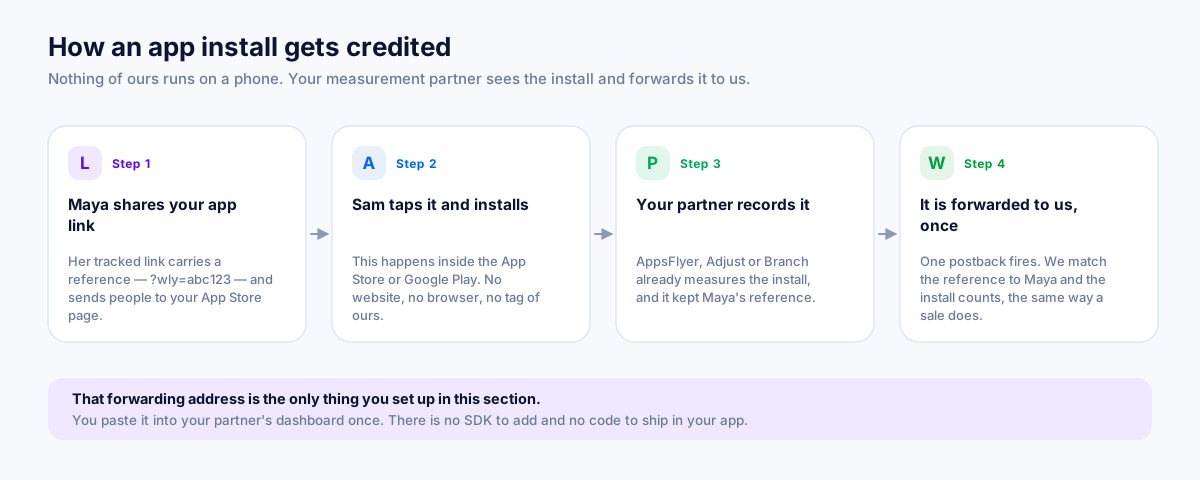
Four things happen, and you are only responsible for the last arrow:
- A creator shares your campaign link. That link carries a click reference; a short code that names the creator who sent this person.
- The person taps it, lands in the store, and installs your app.
- Your measurement partner records that install and remembers which click it came from. That is the one thing partners exist to do.
- Your partner forwards the install to a postback address we give you, carrying the click reference back. We match the reference to the creator and the install becomes a payable commission.
That forwarding address is the only thing you set up in this section.
Before you start
- You have an active plan, so your tracking key has been issued.
- You have an account with AppsFlyer, Adjust or Branch, and access to its dashboard. If an agency runs it for you, they can do steps 1 and 2; send them this guide.
- Your app is set up in that partner already, with its store link in place.
Open Integration setup in your advertiser dashboard and find the App installs section. It is folded shut by default and marked Optional, because most advertisers on the platform are selling on a website. Press Set it up to open it.
Step 1: Copy your postback address
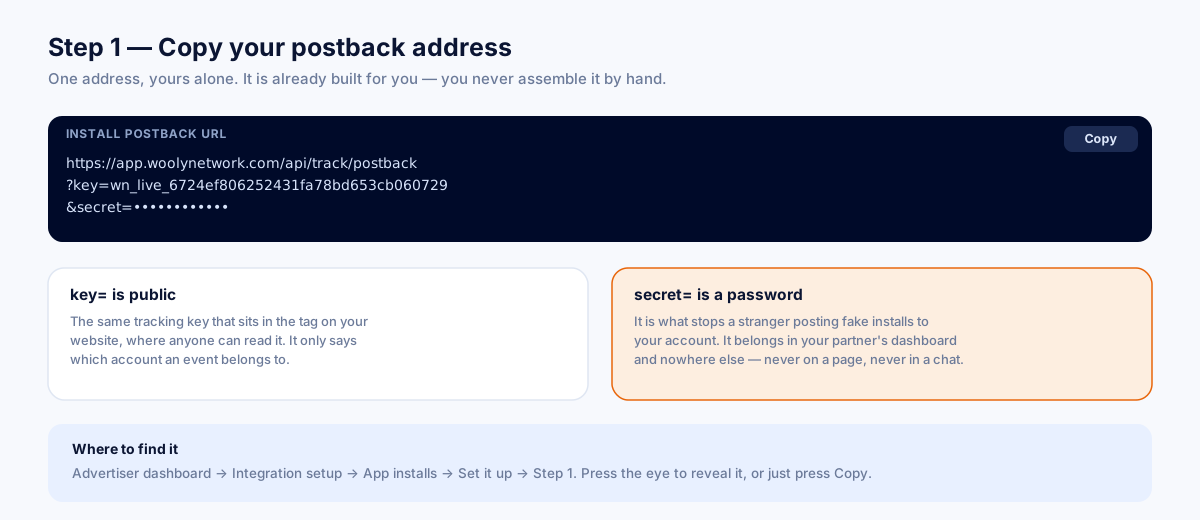
The first step shows one address. It looks like this:
https://your-domain.com/api/track/postback?key=wly_live_ab12cd34&secret=••••••••••••Press Copy and it goes to your clipboard in full. Two parts of it matter:
key=; public. It simply names your account, and the same value is printed in the tag on every page of your own website. Nothing bad happens if somebody sees it.secret=; a password. It is what stops a stranger who read your key from posting fake installs into your account. It is shown blanked on screen on purpose, because this page gets screenshared and screenshotted.
So the whole address goes into your partner's dashboard and nowhere else. Never on your website, never in a public repository, never in an email you would not send a password in.
The address changes only if you rotate your tracking key. If you ever do that, come back here and paste the new one into your partner; the old address stops working the moment you rotate.
Step 2: Paste it into your partner
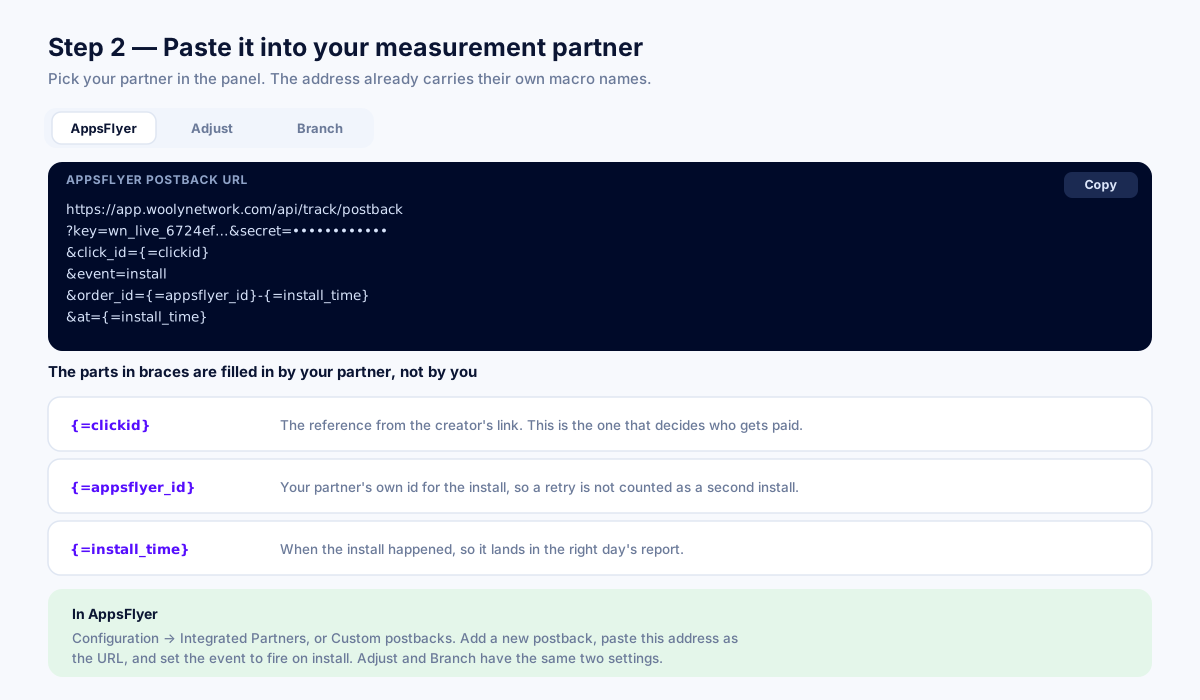
Step 2 has a small tab strip: AppsFlyer, Adjust, Branch. Pick the one you actually use, because the three addresses differ in a way that matters and pasting the wrong one fails silently.
The address for your partner is the same address from step 1 with their own macros written on the end. A macro is a placeholder your partner replaces with a real value at the moment the install happens. AppsFlyer's version reads:
...&click_id={=clickid}&event=install&order_id={=appsflyer_id}-{=install_time}&at={=install_time}Adjust writes the same thing as {clickid}, {adid} and {installed_at}; Branch writes it as $click_id, $identity_id and $timestamp. Copy the tab for your partner and paste it exactly as it is; do not fill anything in by hand, because those braces are what your partner is looking for.
What each piece does:
click_id; the click reference. This is the one that names the creator. If it does not arrive, the install is recorded and pays nobody.event=install; tells us what kind of event this is.order_id; the partner's own identifier joined to the install time. Both halves matter: the identifier on its own names a phone, not an install, so somebody who reinstalls your app would look like a repeat of their own first install and be discarded. Adding the time makes the reference name the install.at, when the install happened, so it lands on the right day in your reports.
In your partner's dashboard, add this as a new postback and set it to fire on the install event. In AppsFlyer that is Integrated Partners → Custom postback; in Adjust it is your app's Callbacks; in Branch it is a webhook set to the install event. Paste the URL, save, and you are done in the partner.
Already set this up months ago? Copy the address again and replace what is in your partner's dashboard. The address was updated so that someone reinstalling your app counts as a new install rather than a repeat of their first one, older versions quietly lost those.
Step 3: Send one real install and read the answer
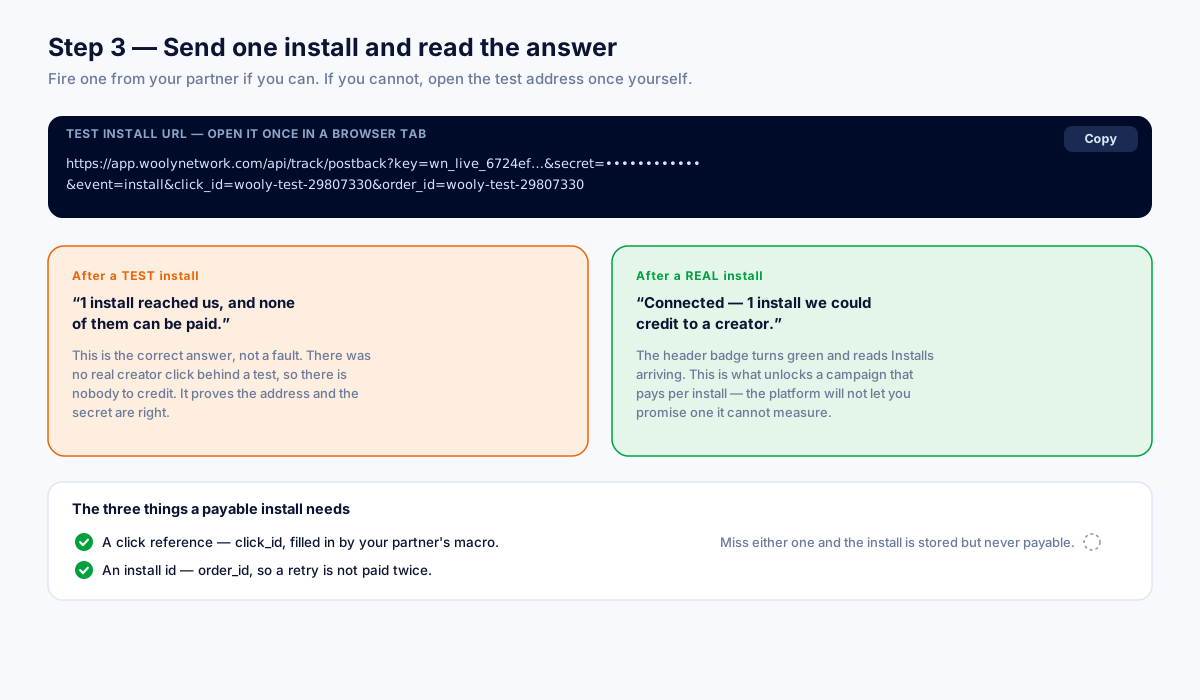
A campaign that pays on installs cannot be launched until one install that could actually be paid has reached us. That is deliberate: a promise nobody can measure is worse than no promise.
The best way to prove it is to fire a real test install from your partner's dashboard. If you cannot (the dashboard belongs to an agency, or the app is not in a store yet) open the disclosure inside step 3, “Cannot fire one from your partner? Test my postback”. It gives you your own address with a test install written on the end:
...&event=install&click_id=wooly-test-29104412&order_id=wooly-test-29104412Open it once, in a browser tab or with curl. Then read what the box underneath says. There are two correct answers and they mean different things.
After a test install
The box turns orange and says something like “1 install reached us, and none of them can be paid.”
This is the right answer, not a fault. There is no real creator click behind a test, so there is nobody to credit. What it has proved is the thing you wanted proved: your address is correct, your secret is correct, and the door is open. You still need one real install before an install campaign can launch.
After a real install
The box turns green and says “Connected: 1 install we could credit to a creator.” That is the finish line for this section. Install campaigns can now be created and every install from a creator link counts from here on.
Every status in this section, explained
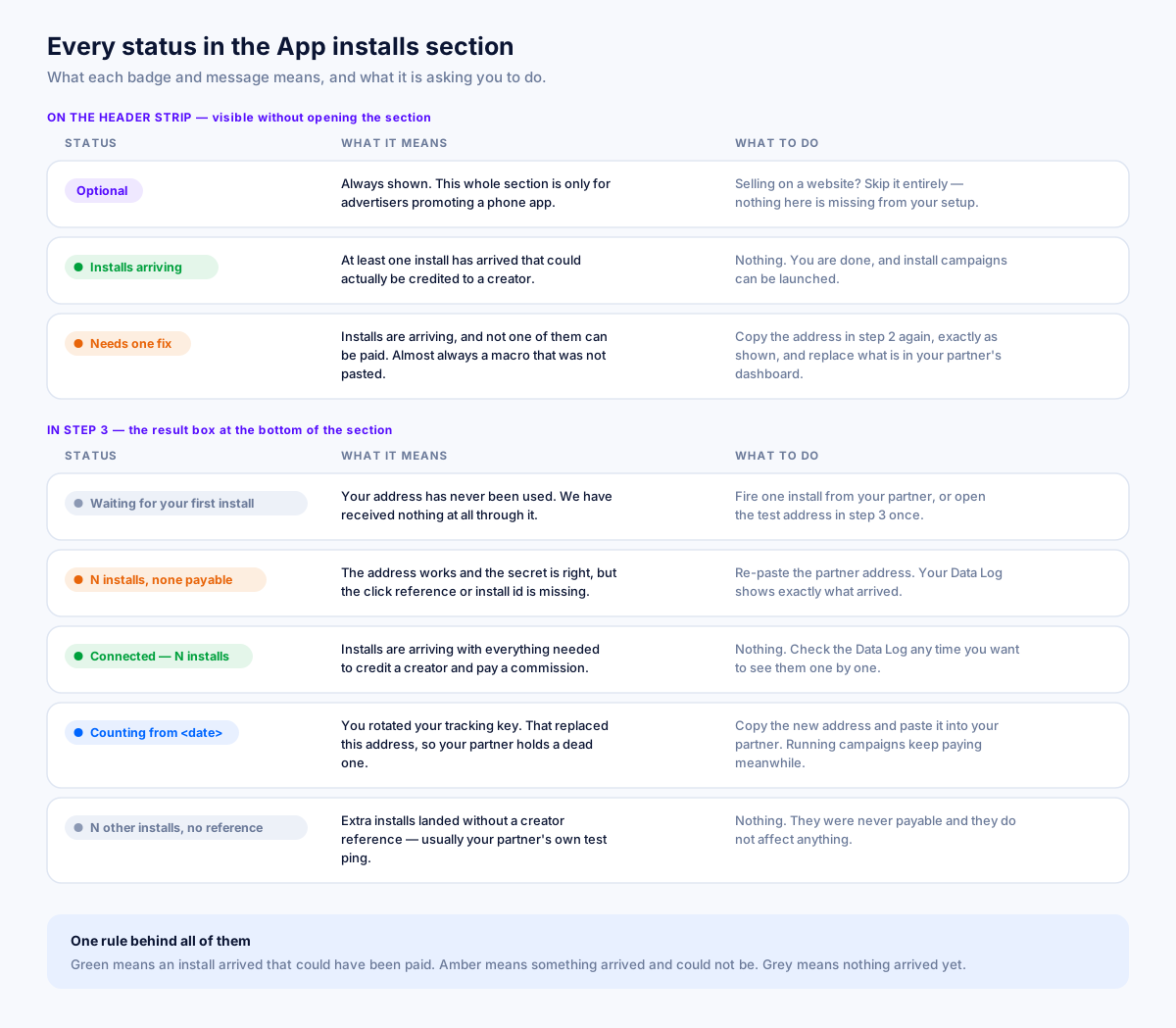
The badges on the section header
- Optional (violet): always shown. It means this section is only for advertisers promoting an app. It is not a warning and it never goes away.
- Installs arriving (green): at least one install has reached us that could be credited to a creator. Everything works.
- Needs one fix (orange): installs are reaching us and none of them can be paid. Almost always one unfilled macro. See below.
The result box in step 3
“Waiting for your first install. Nothing else is needed from you.”
Nothing has arrived yet. If you have just saved the postback in your partner, this is normal; fire a test install and it will move. If it has been days with real installs happening, the postback in your partner is not firing: check it is attached to the install event and that it is enabled.
“N installs reached us, and none of them can be paid.”
The most confusing state, so it is worth being precise. Your partner is firing and your address is right. The postbacks are arriving without a click reference or without an install id, so there is no creator to credit and no way to tell a retry from a second install. The fix is almost always the same: copy the step 2 address again, exactly as shown, and replace what is in your partner's dashboard. The macros in it are what fill those two values in; a hand-typed or half-copied URL is the usual cause. Every one of these events is in your Data Log if you want to see precisely what arrived.
“Connected: N installs we could credit to a creator.”
Working. N is the number that could actually pay somebody.
“Counting from <date>, when your tracking key was rotated.”
This appears under a zero count after a key rotation, and it is the one that quietly costs money. The rotation replaced your postback address, so your partner is holding one that no longer works. Copy the new address and paste it in. Any install campaign already running stays live and keeps paying what it owes, but no new install can reach it until you update the partner.
“N other installs reached us without a click reference.”
Shown next to a green count. Usually your partner's own test ping, or organic installs that never came through a creator link. They are recorded in your Data Log and were never payable. Nothing to fix.
Worked examples
A game promoted by three creators
You run a mobile game and use AppsFlyer. You copy the postback address, paste the AppsFlyer variant into a custom postback set to fire on install, and fire one test from AppsFlyer's own tools. The section shows 1 install reached us, and none of them can be paid; expected, because AppsFlyer's test carries no real click. You launch a campaign paying $2.50 per install. The first creator posts, a viewer taps through, installs, and within a minute the section flips to Connected: 1 install we could credit. That install appears as a pending commission on your Commissions tab for you to accept.
An app whose partner is run by an agency
Your agency owns the Adjust account. You copy the address and send it to them with one instruction: add it as a callback on the install event, exactly as pasted. Meanwhile you use the Test my postback disclosure yourself to prove the address works from your side. When the agency confirms, the first real install turns the section green. Nothing needs to be repeated.
An install that arrived but paid nobody
You see 4 installs reached us, and none of them can be paid. Opening the Data Log shows every one arriving with click_id={=clickid}; the macro itself, unfilled, instead of a value. That means the URL was pasted somewhere the partner does not substitute macros, or it was retyped and the braces are wrong. Re-copying step 2 and re-saving it in AppsFlyer fixes it, and the next install credits properly.
Troubleshooting
- Nothing at all is arriving. Check the postback is enabled and attached to the install event, not to a purchase or a custom event. Then open the Test my postback address yourself, if that one arrives, the address is fine and the problem is on the partner's side.
- Everything arrives but nothing pays. An unfilled macro. Re-copy the step 2 address for your exact partner and re-save it.
- It worked, then stopped. Check whether your tracking key was rotated. The section will say so under the count.
- Reinstalls are not counting. You are on an older address that identified installs by device alone. Copy the current one and replace it.
- Installs count but no creator gets paid. The click reference is arriving empty. Confirm the creator link in your campaign is the one being shared; an install from a link that never went through us has no creator behind it and correctly credits nobody.
A short checklist
- Copy the address from step 1. Treat the
secret=part as a password. - Pick your partner's tab in step 2 and paste that URL exactly, unedited, as a postback on the install event.
- Fire one install, a test to prove the address, a real one to unlock install campaigns.
- Read the box: orange after a test is correct; green means you are finished.
- If you ever rotate your tracking key, come straight back and re-paste the new address.
Related reading
- Affiliate Fraud: How to Spot It and Stop It — The six schemes that actually cost advertisers money, the signals that expose each one, and a review process that catches them without accusing honest partners of anything.
- What Is a Cookie Window in Affiliate Marketing? — The number that decides whether a partner gets paid: how windows work, what length suits your category, why browsers shortened them, and the resets and overlaps that cause most disputes.
- Last Click vs First Click Attribution: Which One Pays the Right Partner? — Why last click quietly overpays coupon sites and underpays the content that created the demand, what the alternatives actually cost to run, and how to test incrementality without rebuilding your stack.
More from the Wooly Network Knowledge Library