How to approve the right creators
A walkthrough of the Creator applications tab: every status explained, what each button does, and exactly what changes for the creator when you press it.
By Nora Ellis, Affiliate Marketing & Creator Economy Writer · with Wooly Network, Advertiser Success · 31 August 2026 · 7 min · Marketplace Best Practices
Every creator who wants to promote one of your campaigns has to ask you first. Those requests all land in one place: the Creator applications tab in your advertiser dashboard, and this guide walks through it end to end: what each column is telling you, what every status means, and exactly what changes for the creator the moment you press a button.
The screenshots come from a demo account, so you can see each status side by side. Your own tab will show your creators and your campaigns.
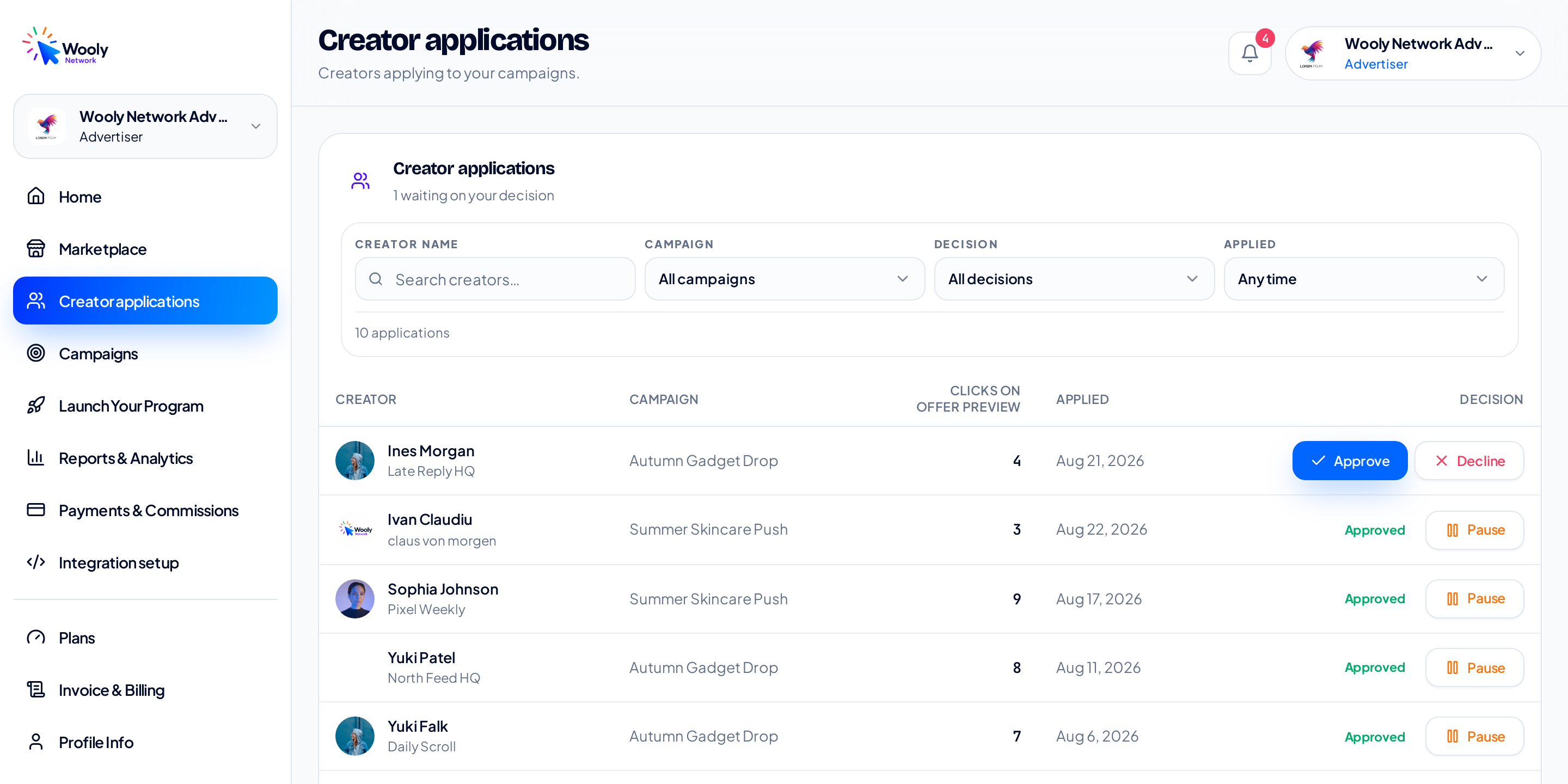
Creator applications, open in the advertiser dashboard. Everything on this page is one queue: the creators asking to work with you.
Two small things worth knowing before we go further. The line under the title counts the decisions still sitting with you: "1 waiting on your decision", or "Everyone has been reviewed" when your queue is clear. And the same panel also appears on your Marketplace tab: it is the same queue in both places, not two different lists, so a decision made in one shows up instantly in the other.
Reading the table
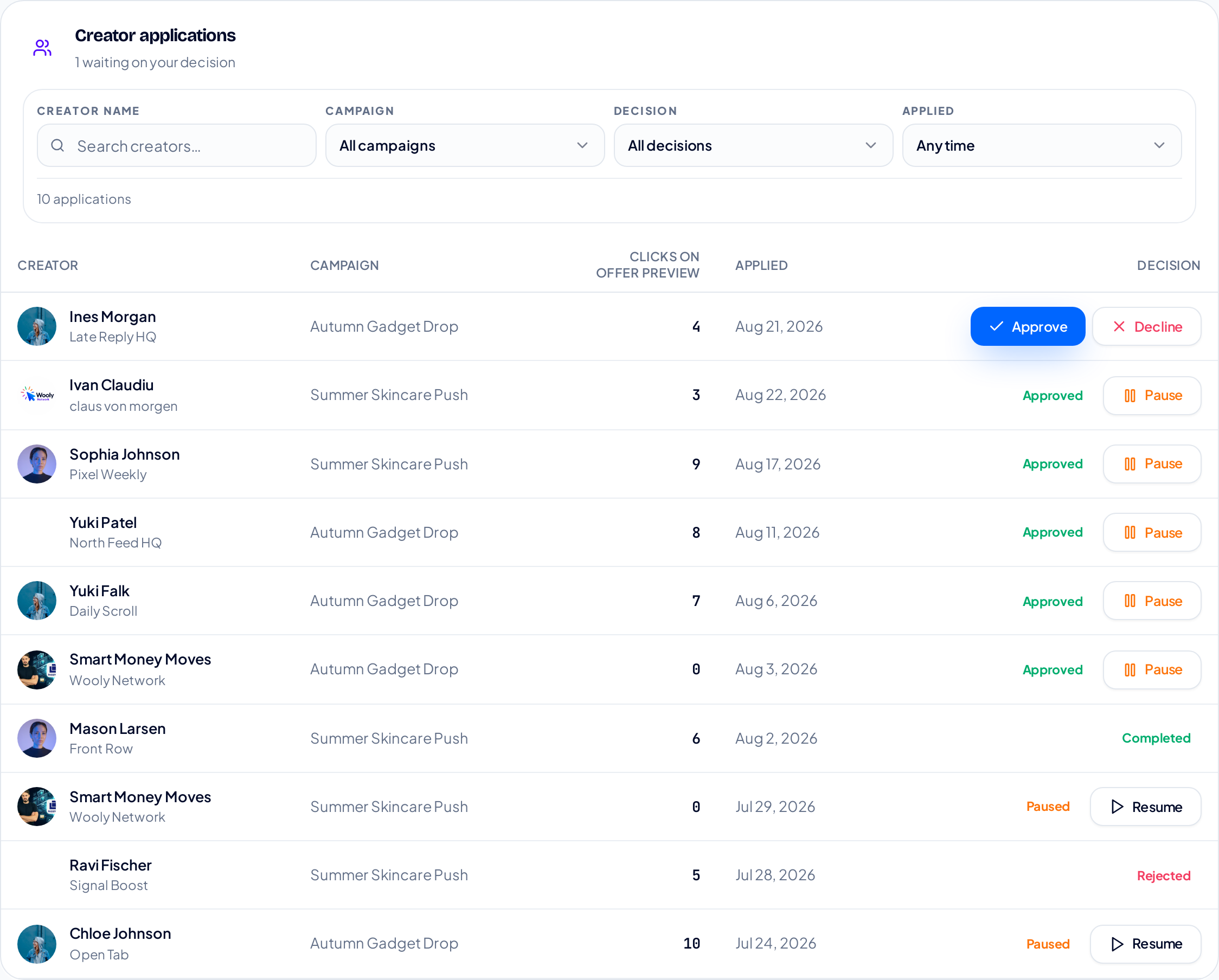
One row per application. Anyone still waiting on you is pushed to the top of the list, no matter when they applied.
Five columns, left to right:
- Creator; their name and handle. The name is a button: click it and their full profile opens.
- Campaign, which of your campaigns they applied to. A creator can apply to several, and each application is its own row with its own decision.
- Clicks on offer preview; how many times this creator opened your offer's preview page in the marketplace. It is a measure of their interest in this campaign, not of traffic they have sent you.
- Applied; the day the application landed. A real date rather than "3 weeks ago", because when you are working through a queue the day is what matters.
- Decision; the status, and any button you can press on it. This is the column the rest of this guide is about.
The order is deliberate: everyone waiting on you sits at the top of the table, and within each group the newest application comes first. Long queues are shown 50 rows at a time, with the pager underneath.
Look before you decide
Clicking a creator's name opens their profile, the same details they filled in on their own Profile Info tab.
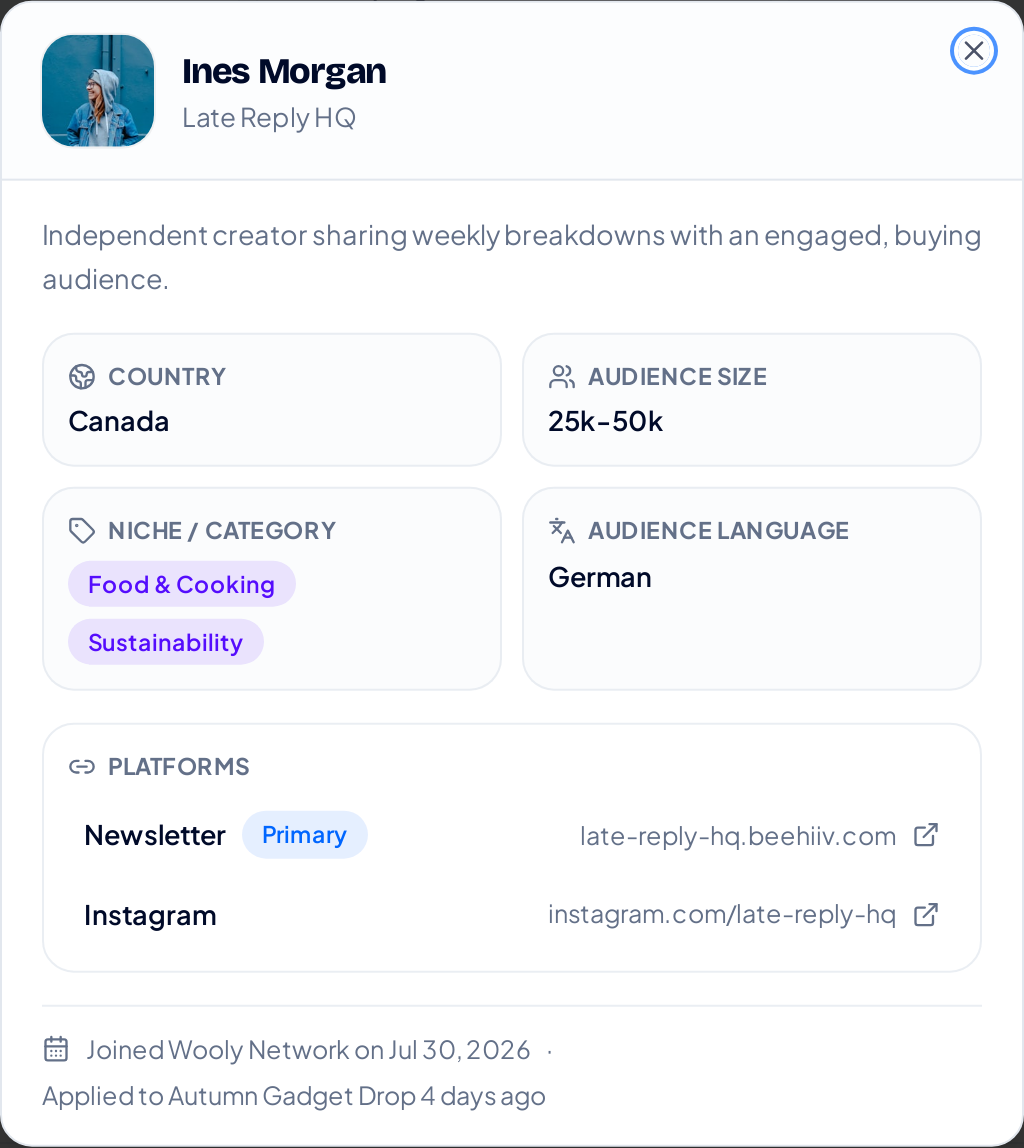
Their bio, country, audience size, niches, audience language and the platforms they publish on, Brand Collaborations, and the Flat Fee Accepted badge, with links you can open. At the bottom: when they joined Wooly Network, and which campaign they applied to.
This is the information the platform has on them, and it is the fair way to answer the question in the title of this guide. Does their audience live in the countries your campaign ships to? Do their niches match what you sell? Do the platform links look like somewhere your product belongs? Open the links and see for yourself, then come back and decide.
Nothing in your queue yet?
Creators can only apply to a campaign that is live
This tab fills up from your marketplace listings: no live campaign means no applications to review. Our step-by-step guide walks you through publishing one, screenshot by screenshot, from payout model to commission.
Launch your first campaign →Finding people in a long queue

Four filters and a live count of how many applications are showing out of your total.
- Creator name; type any part of a name or handle.
- Campaign; narrow to one campaign at a time.
- Decision; filter by status.
- Applied; Any time, Today, Last 7, Last 30 or Last 90 days, or pick one exact day from a calendar.
The Decision filter is the one you will use most, and it maps straight onto the statuses below.
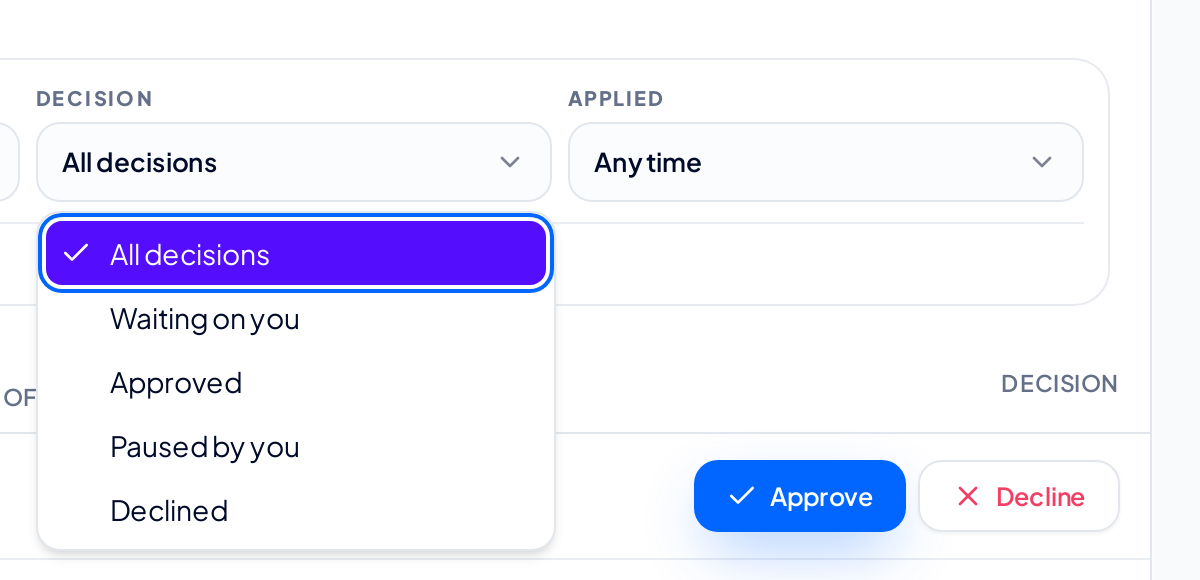
All decisions, Waiting on you, Approved, Paused by you, and Declined.
Two useful habits: Waiting on you is your to-do list, and Paused by you is the list to revisit; those are partnerships you stopped, and only you can start them again. A Reset button appears next to the count whenever a filter is on, and the count itself always tells you how many rows the filters are hiding.
The statuses, one by one
Waiting on you

A new application. Until you answer, this is the only status that comes with two buttons.
A creator applied and nothing has happened yet. They can see they are waiting, so this is the status worth clearing quickly. You have two answers.
Approve takes one click, with nothing to fill in. The moment you press it the platform issues that creator their own tracking link for this campaign, adds them to the campaign's partner count, and tells them they are in. From then on their traffic and commissions on this campaign flow to you.
Decline asks you for a reason first, and the reason is required.
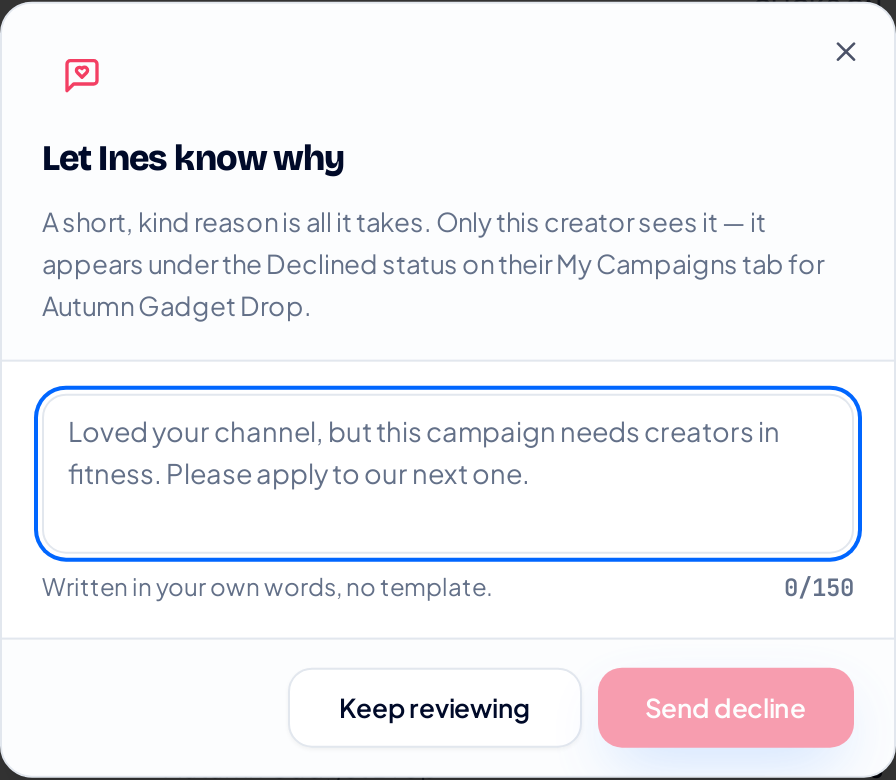
A short, kind reason, up to 150 characters. Only this creator sees it, under the Declined status on their My Campaigns tab, for this campaign only.
The creator reads your words exactly as you typed them, which is why the box is deliberately small: a sentence explaining what did not fit is enough, and it is far more useful to them than silence. Nothing else about the creator changes; a decline is about one application to one campaign, not about them.
Approved

Approved, and running. The Pause button only ever appears on this status.
The partnership is live: the creator has their tracking link and is free to promote this campaign, and their commissions arrive in your Payments & Commissions tab for you to review. There is nothing more to do here, but you now have one control you did not have before.
Paused by you
Pausing is how you stop an approved creator on one campaign without ending the partnership. It exists only after an approval: an application still waiting on you has nothing to pause, and declining is the answer to that one.
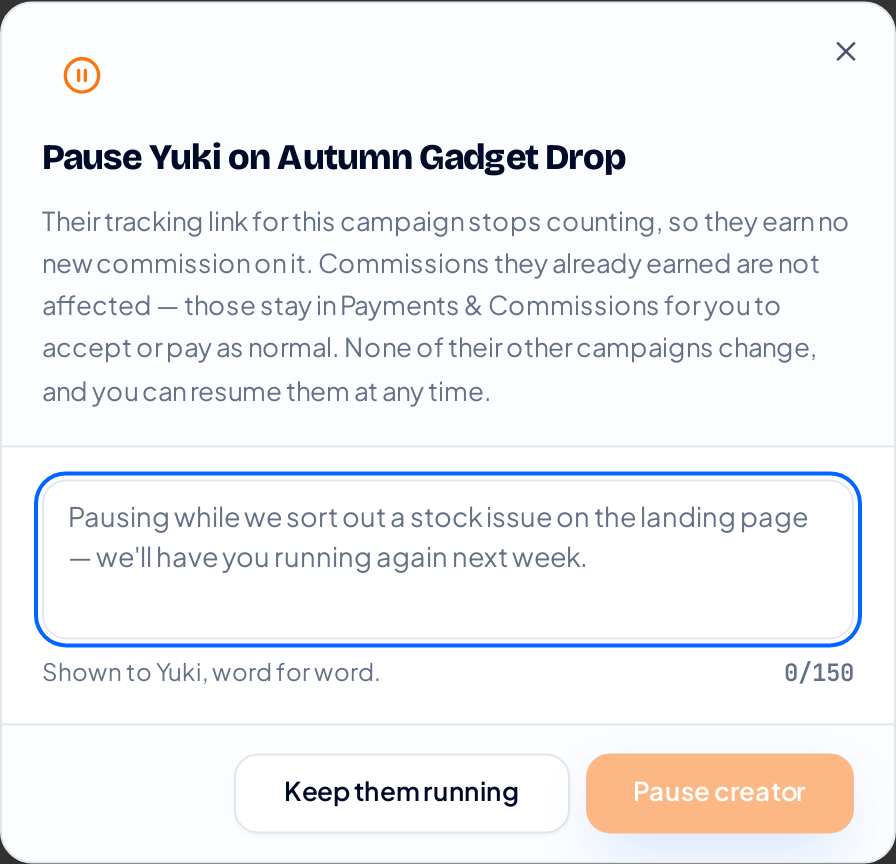
Pausing also asks for a reason, and the creator reads it word for word.

Paused. The status turns orange and the button becomes Resume; hovering the status shows the reason you gave.
Here is exactly what a pause does, and what it does not:
- Their tracking link for this campaign stops counting, so no new commission can be earned on it.
- Every commission that landed before the pause is untouched. It stays in Payments & Commissions and you review, accept and pay it exactly as before.
- None of that creator's other campaigns change, not yours, not anyone else's.
- Everyone else on the campaign keeps running. A pause is one creator on one campaign, nothing wider.
- The creator sees a "Paused by brand" status on their My Campaigns tab, with your reason, so they know it was a decision and not a bug.
- Resume undoes it whenever you like. Their link starts counting again from that moment.
Underneath, a paused creator is still an approved partner, which is the point. Your partner counts, earnings totals and payment deadlines all keep reading exactly as they did, so pausing someone never quietly rewrites your numbers.
Declined

Declined. No buttons: the decision has been made and the row is here as a record.
You answered no, and the creator has read your reason on their side. The row stays in the tab so you have a record of who applied and what was decided, and it drops out of your "Waiting on you" list.
Completed

Completed. A partnership that has finished its run.
The partnership reached its end. Completed is final: the platform will not let a completed partnership be approved, declined, paused or resumed again, which is why the row carries no buttons. Everything it earned stays in your records and in the creator's.
Read-only
One more thing you may see instead of buttons. If your own advertiser account is ever under review by Wooly Network, this tab switches to Read-only: every application and every creator profile still opens and reads in full, but decisions wait until your account is active again. Nobody in your queue is declined by the pause; they simply keep their "waiting" standing until you can answer.
A two-minute routine
- Set the Decision filter to Waiting on you.
- Click each name and read the profile before you answer.
- Approve the ones that fit. Decline the ones that do not, with a sentence saying why.
- Switch the filter to Paused by you and resume anyone whose reason no longer applies.
Do that regularly and your queue never becomes a backlog, which matters more than it sounds, because creators can see how long they have been waiting, and the good ones are choosing between programmes.
More creators to review
A second campaign brings a second queue
The more of your programme is live in the marketplace, the more creators come to you. Walk through building your next campaign (payout model, commission, creative and countries) in our launch guide.
Launch your next campaign →Related reading
- How to create your first Campaign — A step-by-step walkthrough of the Launch Your Program tab: every field, all four campaign types, and exactly what creators see when you publish.
- How to set commission payment terms — The waiting period creators see before they apply: what 30 and 60 days mean, and how to pick yours in four clicks.
- Understand your reports — A guided tour of the Reports & Analytics tab: what every panel shows, which number to act on, and how to read your programme in two minutes.
More from the Wooly Network Knowledge Library