How to read an offer on Wooly Network
The offer page, section by section: where to find it, what every field means, and what to check before you apply.
By Nora Ellis, Affiliate Marketing & Creator Economy Writer · with Wooly Network, Creator Success · 31 August 2026 · 5 min · Creator Monetization
Every offer on Wooly Network has its own page, the brand, the campaign, the money and the rules, all in one place. Reading it properly takes two minutes and saves you a lot of guessing later. Here is what each part of that page means, from the top down.
Where you find it
Open the Marketplace in your creator workspace and click anywhere on an offer card. The same page also opens from Newest offers on your home page, and from the campaign name on My Campaigns once you have joined.
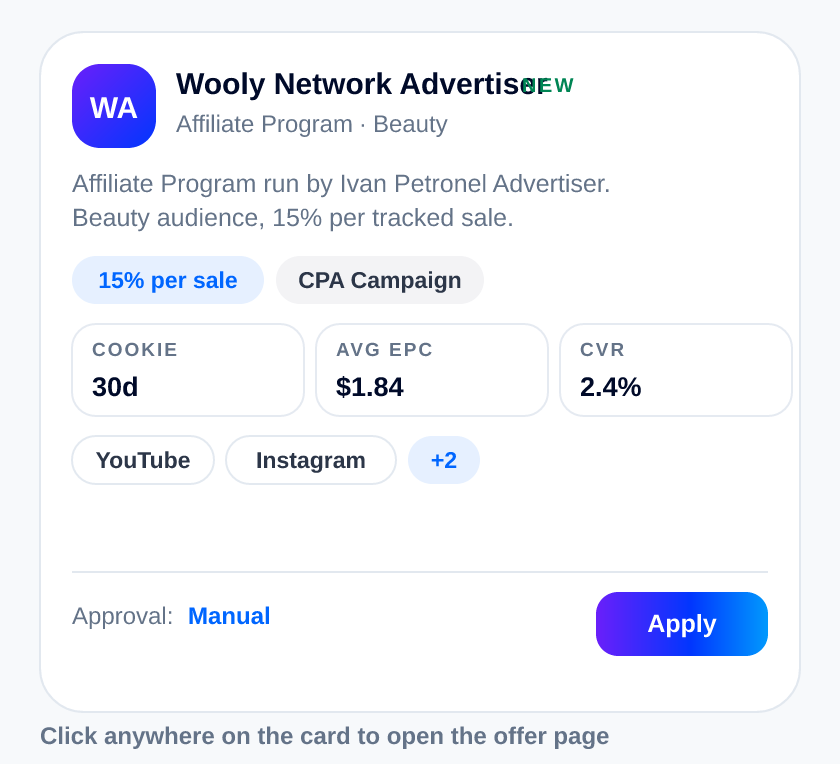
The card is the short version: brand, offer type and category, the commission, the cookie window, average EPC and CVR, the channels allowed, and whether approval is Instant or Manual. The Apply button on the card applies straight away; clicking anywhere else opens the full page below.
1. The top: who the brand is and what you earn
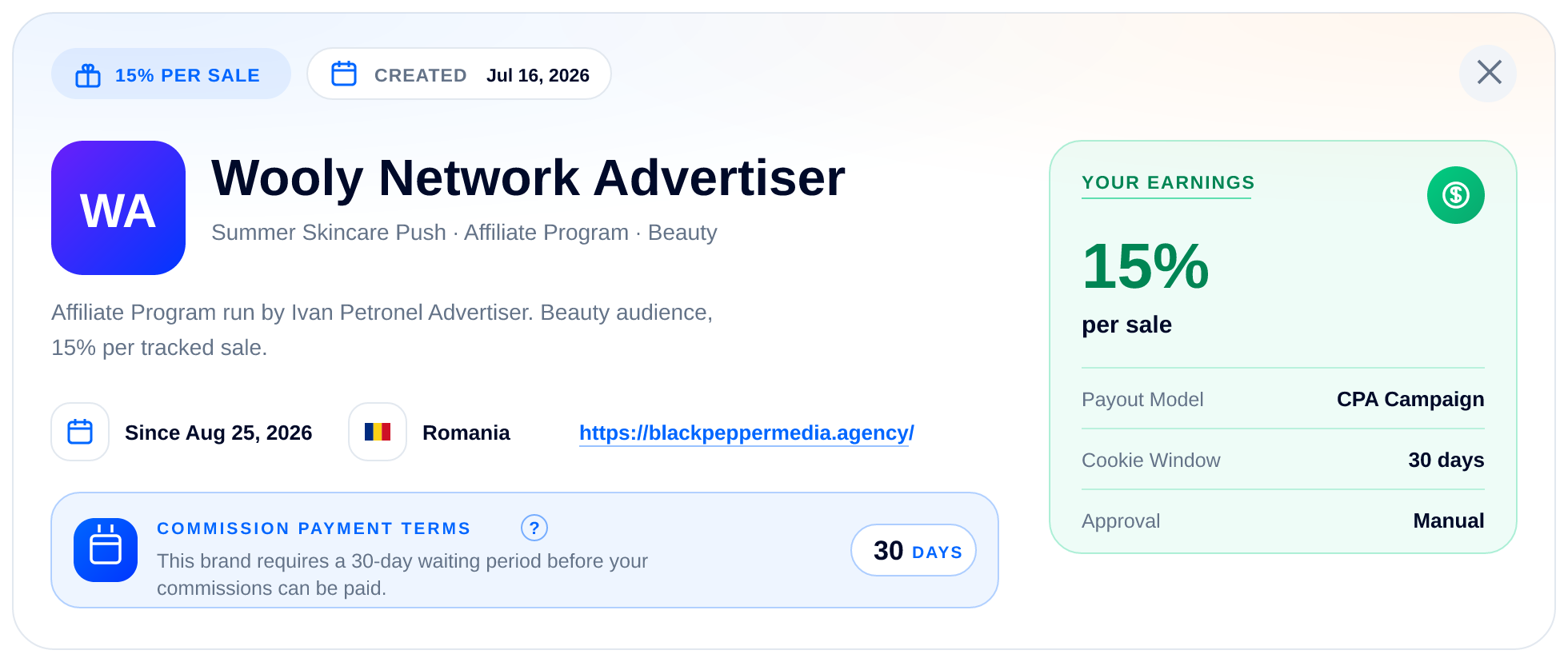
Reading left to right:
- The chips at the very top show the commission and the date the campaign was Created, so you can see how fresh it is. A paused or ended campaign says so here too.
- Under the brand name you get the line campaign name · offer type · category, then the brand's own summary of the campaign.
- The small facts underneath are the brand's profile: how long they have been On Wooly Network, their country, and their website.
- Commission Payment Terms is the waiting period this brand chose before approved commissions can be paid: 30 or 60 days. Tap the question mark for an example of what that means for a sale made today.
- Your earnings, on the right, is the money card: the headline rate, then the Payout Model, Cookie Window, Approval, and when the brand filled them in: Earnings Period and Pays On. Its colour follows the payout model, so after a few offers you will recognise a revenue share from a fee per lead before you read a word.
If there is an audience discount or a booster on the campaign, they appear here as well, right under the brand details.
2. About the brand
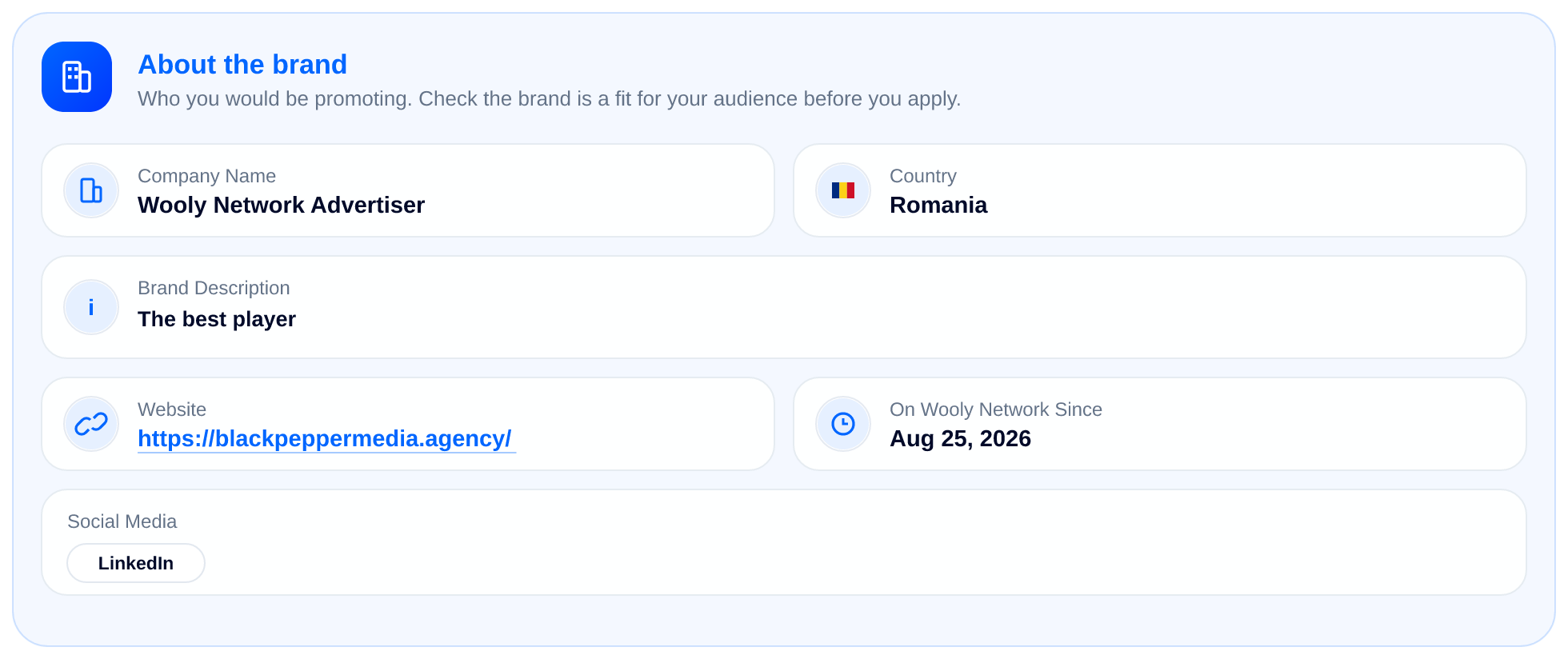
Everything the brand has made public: company name, their own description, country, website, the date they joined and their social profiles. This is the fit check: open the website, look at the product, and ask whether your audience would actually buy it. A brand that has not added public details yet simply says so.
3. Campaign overview
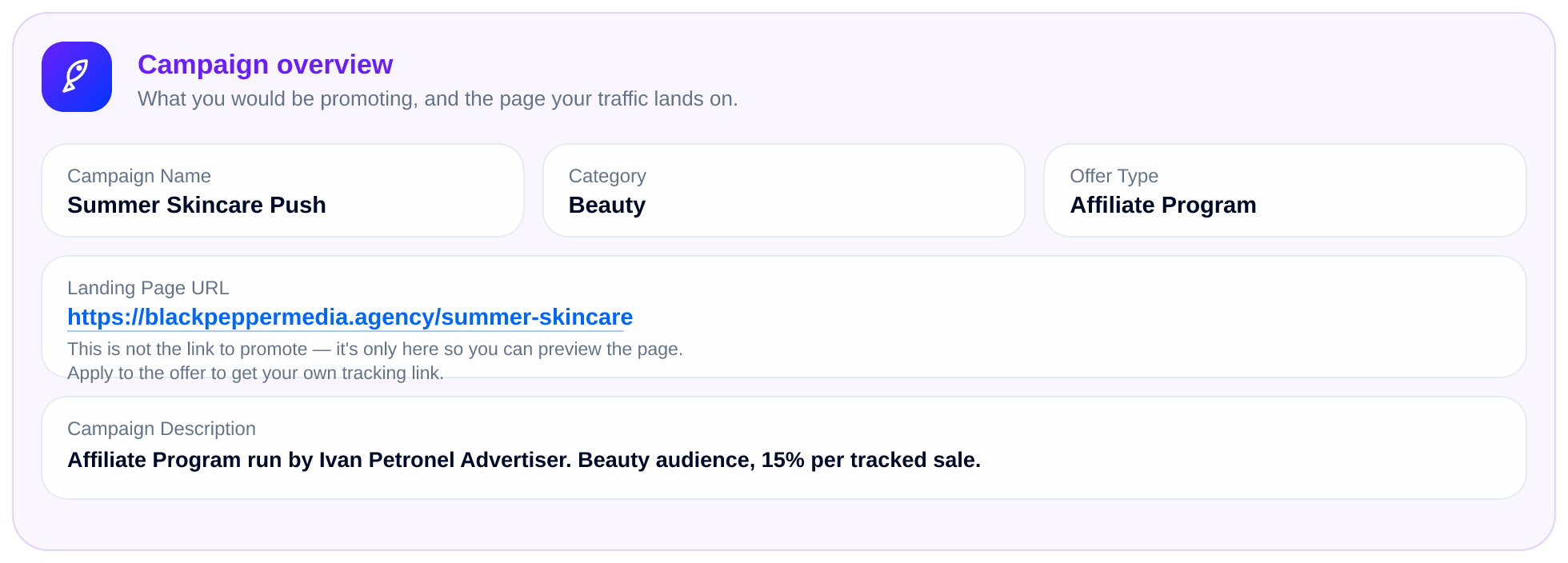
What you would be promoting: campaign name, category, offer type, the full description and the Landing Page URL.
One thing worth remembering: the landing page URL is not the link you promote. It is there so you can preview the page your traffic would land on. Your own tracking link arrives when you apply.
4. Promotional materials and allowed channels
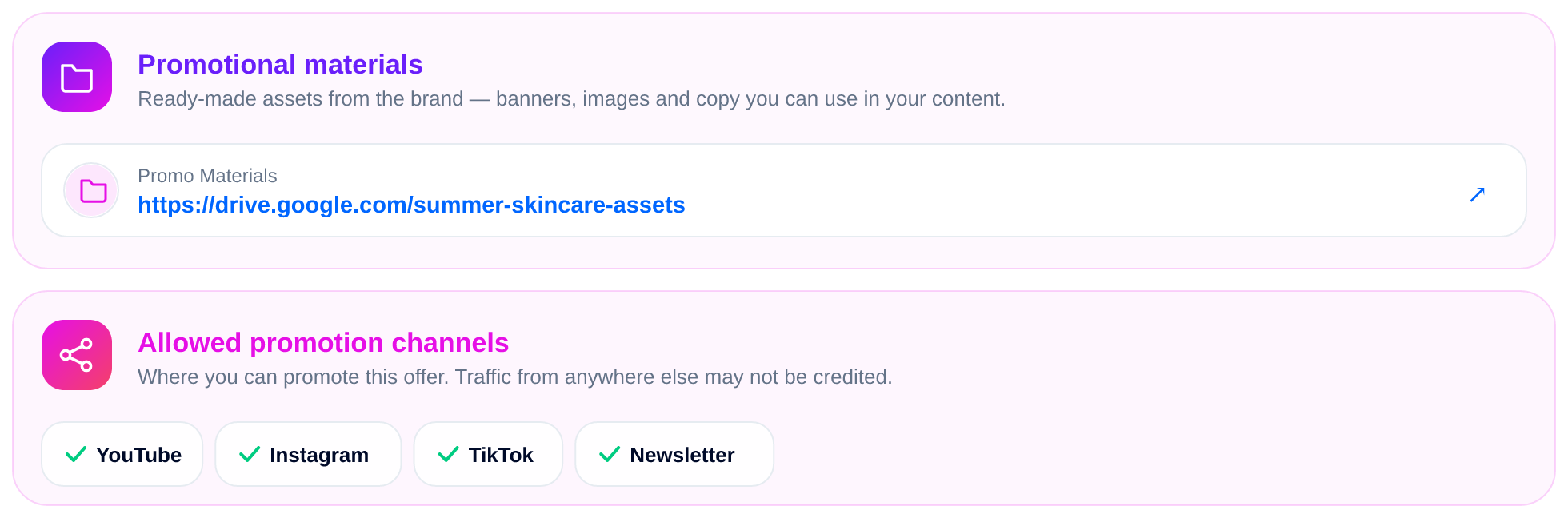
Promotional materials are the brand's asset folder: banners, images, and copy you may use. Some campaigns have none, and the section says that plainly instead of leaving you wondering.
Allowed promotion channels are the ones to read twice: these are the places you may promote from. Traffic from anywhere else may not be credited, so if your best channel is not on the list, that offer is not the right one for you.
5. Campaign commercials
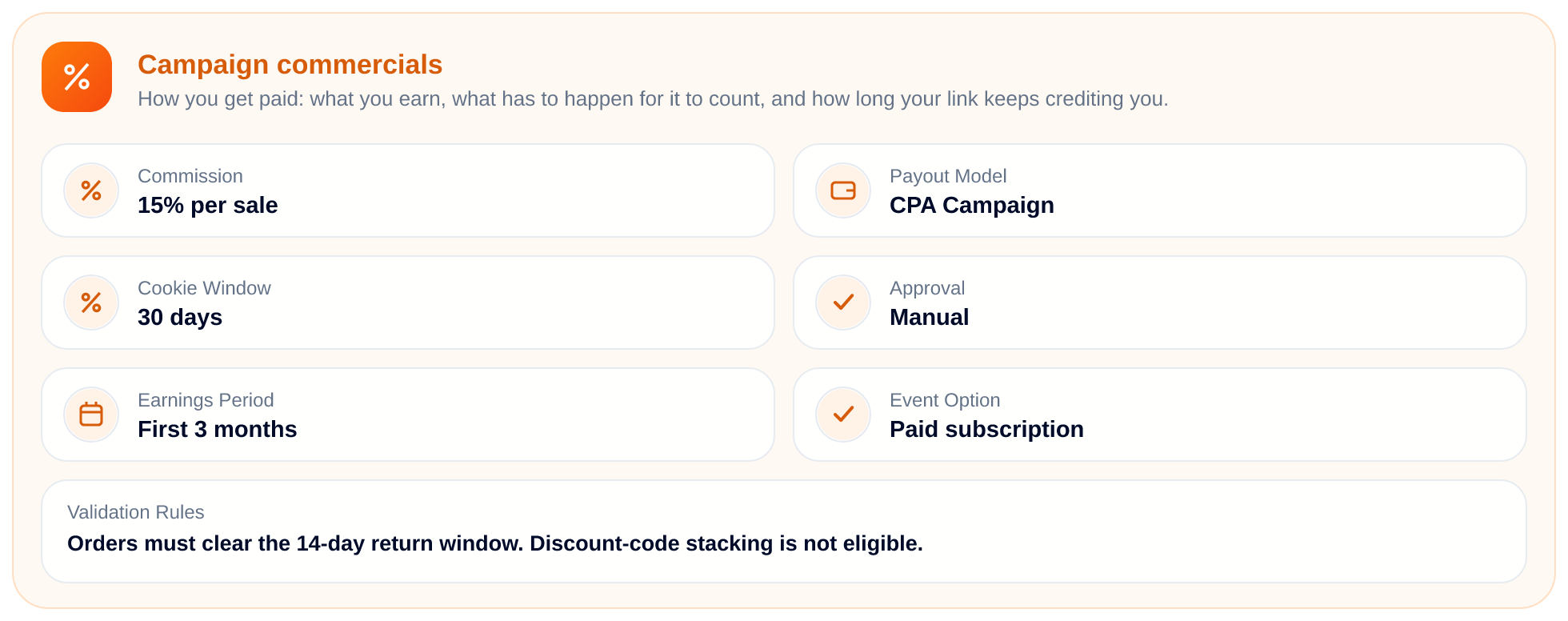
The whole deal, in one card:
- Commission; what you earn per qualifying action.
- Payout Model; how that is counted: Affiliate Program, Revenue Share Campaign, CPA Campaign, or (CPL) Lead Generation Campaign.
- Cookie Window; how long after the click your link keeps crediting you.
- Approval; Instant means you are in and your tracking link is ready immediately; Manual means the brand reviews your application first.
- Earnings Period and Event Option; how long a customer keeps earning for you, and which event has to happen for a commission to count.
- Validation Rules; the brand's own conditions for approving a commission. Read these before you promote, not after.
Fields the brand left empty are not shown at all, so anything you can see here is a real term of the deal.
6. Audience offer and campaign boosters
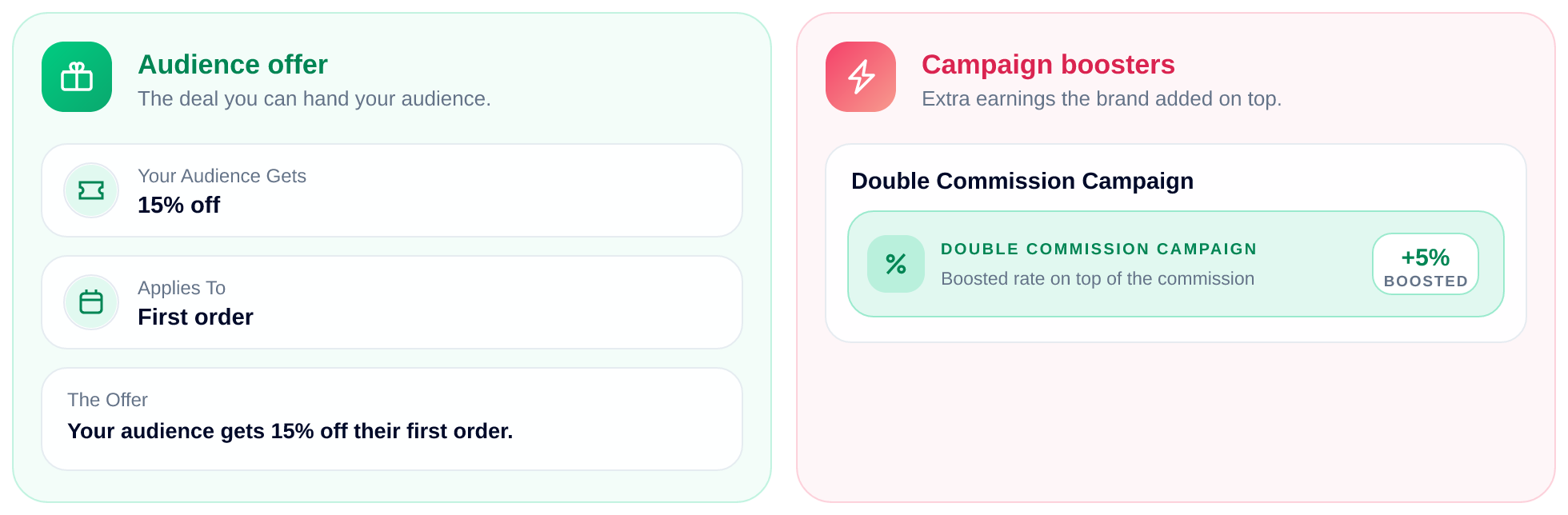
Audience offer is the deal you can hand your followers: the discount, what it applies to and the exact line you can quote. That is your hook.
Campaign boosters are extras the brand added on top of the standard terms, while they last: a boosted rate, a performance bonus, or a campaign that runs for a limited window. Either section says "no audience offer" or "no boosters" when there is nothing to show.
7. Campaign guideline: FAQ
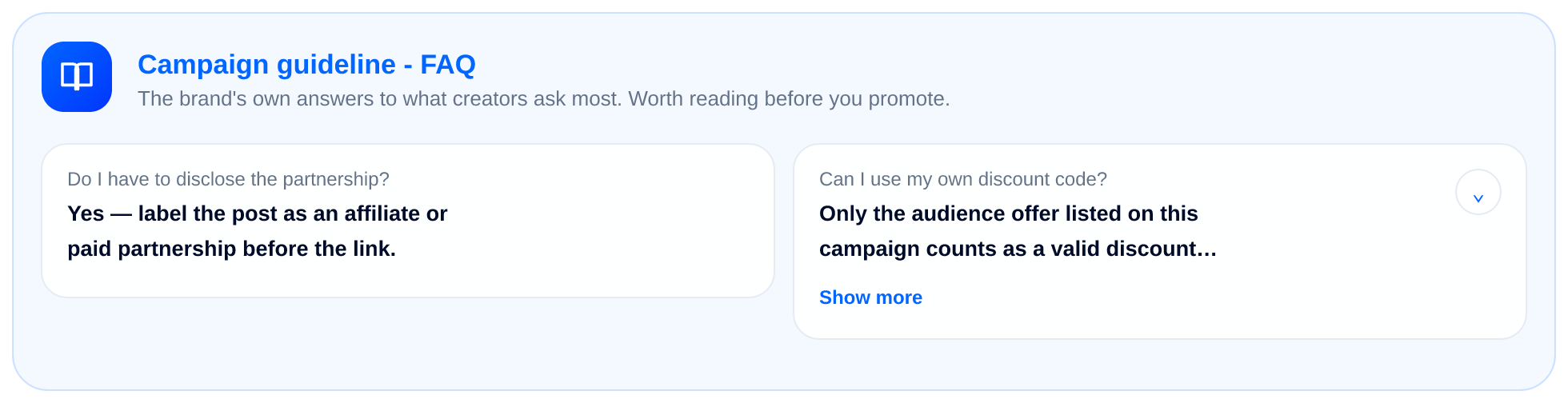
The brand's own answers to what creators ask most, at the bottom of the page. Long answers fold behind Show more. This is where the details that decide a commission usually live, so it is worth the extra minute.
Before you press Apply
- Is my channel on the allowed list?
- Do the commission, cookie window and validation rules add up for the effort?
- Is the waiting period on payment terms one I am happy with?
- Would I recommend this brand to my audience anyway?
Four yeses and you are ready. After that, how payments and commissions work covers what happens between a click and your payout, and how to create high-converting content covers the post itself.
Ready when you are
Open an offer and read it like a pro
Browse live campaigns, open the ones that fit your audience, and apply free. Instant-approval offers hand you your tracking link on the spot.
Browse the marketplace →Related reading
- Creator Retainers: How Monthly UGC Deals Work and What to Charge — A creator retainer trades a lower per video rate for steady monthly work. Here is how to structure, price and end one without losing money on either side.
- How to Pitch Brands as a UGC Creator: Message Templates That Get Replies — Four copyable pitch templates for UGC creators, who to contact, what to attach, a follow up cadence, and why applying beats cold pitching most of the time.
- How to Build a UGC Portfolio That Gets You Hired (With Examples) — What brands actually scan for in a UGC portfolio, the six videos worth including, spec work ideas by niche, and the mistakes that get profiles skipped.
More from the Wooly Network Knowledge Library