Understand the Earnings & Payouts tab
Every card, panel, and status on your Earnings & Payouts tab shows what each figure means and exactly how and when your money reaches your account.
By Nora Ellis, Affiliate Marketing & Creator Economy Writer · with Wooly Network, Creator Success · 31 August 2026 · 8 min · Creator Monetization
This is the tab you will open more than any other, so it is worth knowing exactly what every number on it means. Nothing here needs a request, a form, or a withdraw button: your money is worked out from your commissions and sent to you automatically. This is the whole tab, from the top down.
Where you find it
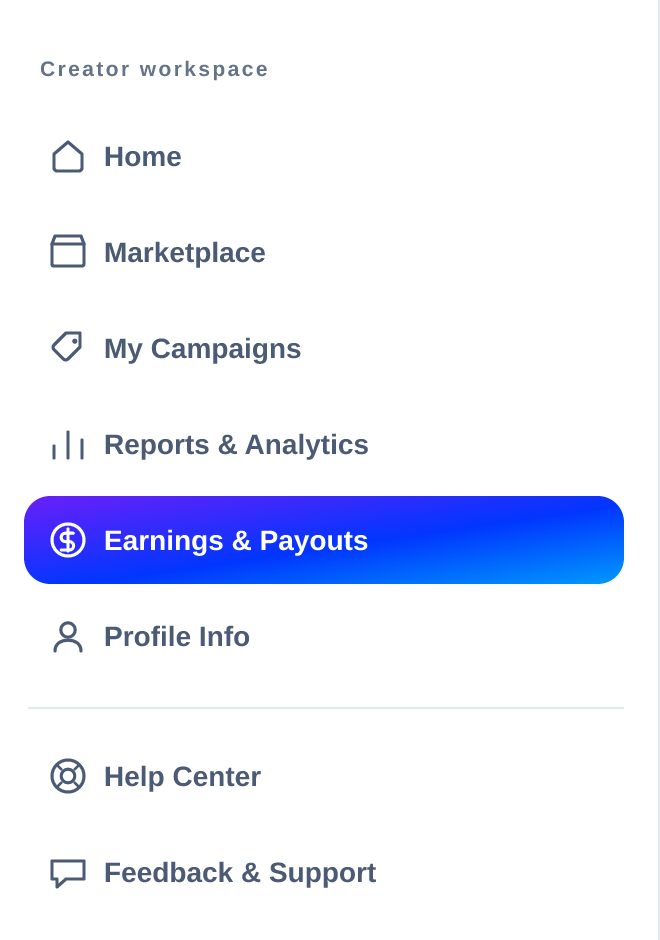
In your creator workspace, open Earnings & Payouts in the left sidebar. It sits right under Reports & Analytics.
The page header says it plainly: what you have earned, and when it reaches your account. Everything below is either a figure, a status, or a record of a transfer.
1. The four cards at the top

These four are the whole story of your money, in the order it moves:
- Pending; every commission still marked Pending in Commission history at the bottom of the page. The conversion is recorded; the advertiser has simply not decided on it yet.
- Payable Balance; every commission the advertiser has already Accepted. It is agreed money, waiting for their monthly settlement.
- Next Payout; what the automated transfer will carry: the commissions the advertisers have actually paid. This is the same figure as the Next Payout panel below, always.
- Total Earnings; the money that has really landed in your own account: the net of every payout marked Paid, fee already taken off.
An example, using the cards above. You have $1,284.50 of conversions nobody has decided yet, $2,940.00 the advertisers have agreed to but not yet settled, $1,860.00 sitting ready for the next transfer, and $14,320.75 that has already reached your bank over your time on the platform. Four different stages, four different cards - a commission moves left to right, never backwards.
Pending and Payable Balance are read straight off the table at the bottom of the page, so a card can never tell you something the table does not.
2. Stripe Connect status: the one thing you set up
Payouts are automated, which is why there is no withdraw button anywhere on this page. Instead, there is one account for the money to go to, and this panel is where you connect it.
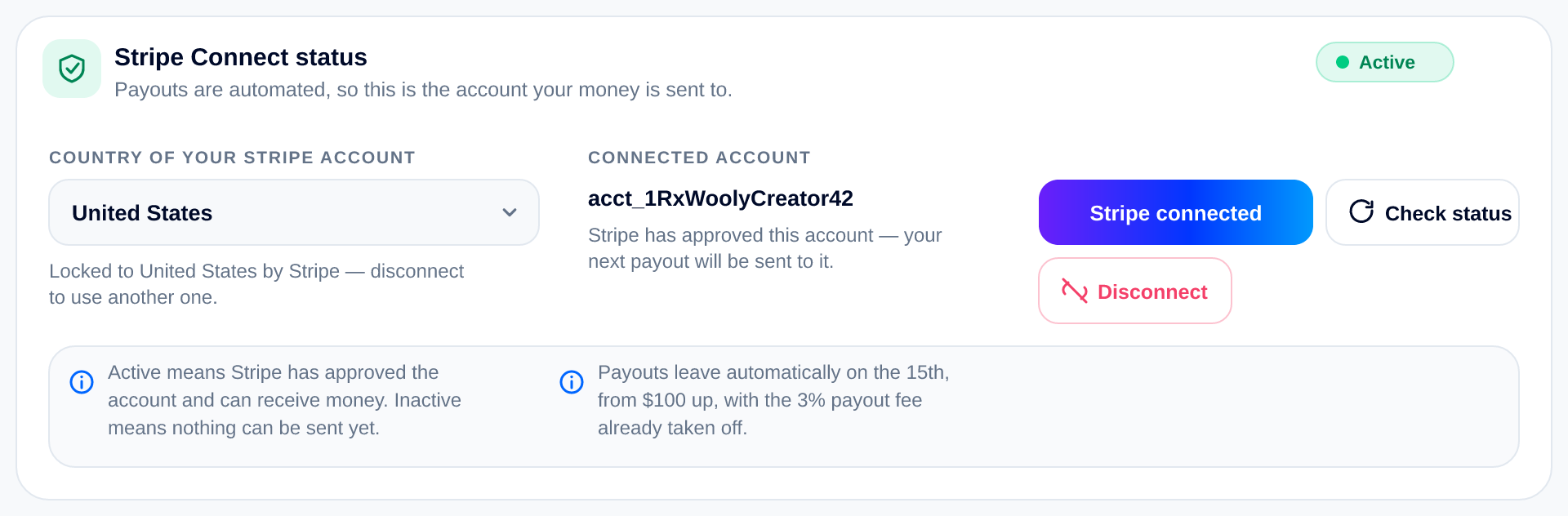
What each part does:
- Country of your Stripe account; pick the country you receive money in before the account exists. Stripe can never change it later, so once an account is created, the field locks; disconnecting is the only way to use another country.
- Connected account; the account ID money is sent to, with a line telling you where it stands.
- Connect Stripe account starts onboarding. If you left it half-finished the button reads Finish Stripe onboarding, and once Stripe approves, it reads Stripe connected.
- Check status asks Stripe again, handy right after you finish onboarding.
- Disconnect removes the account. Your balance stays exactly where it is, but nothing can be sent until another account is connected.
The pill in the corner is the status, and there are three:
- Active (green): Stripe has approved the account and it can receive money.
- Verifying (orange): Stripe is still checking it. Nothing can be sent until it is approved.
- Inactive (red): nothing can be sent yet, so this is the one to fix first.
Worth doing early: connect Stripe on the day you join, not on the 14th. Your commissions build up either way, but a transfer can only leave to an account that is already active.
3. Next payout: your one automated payment a month
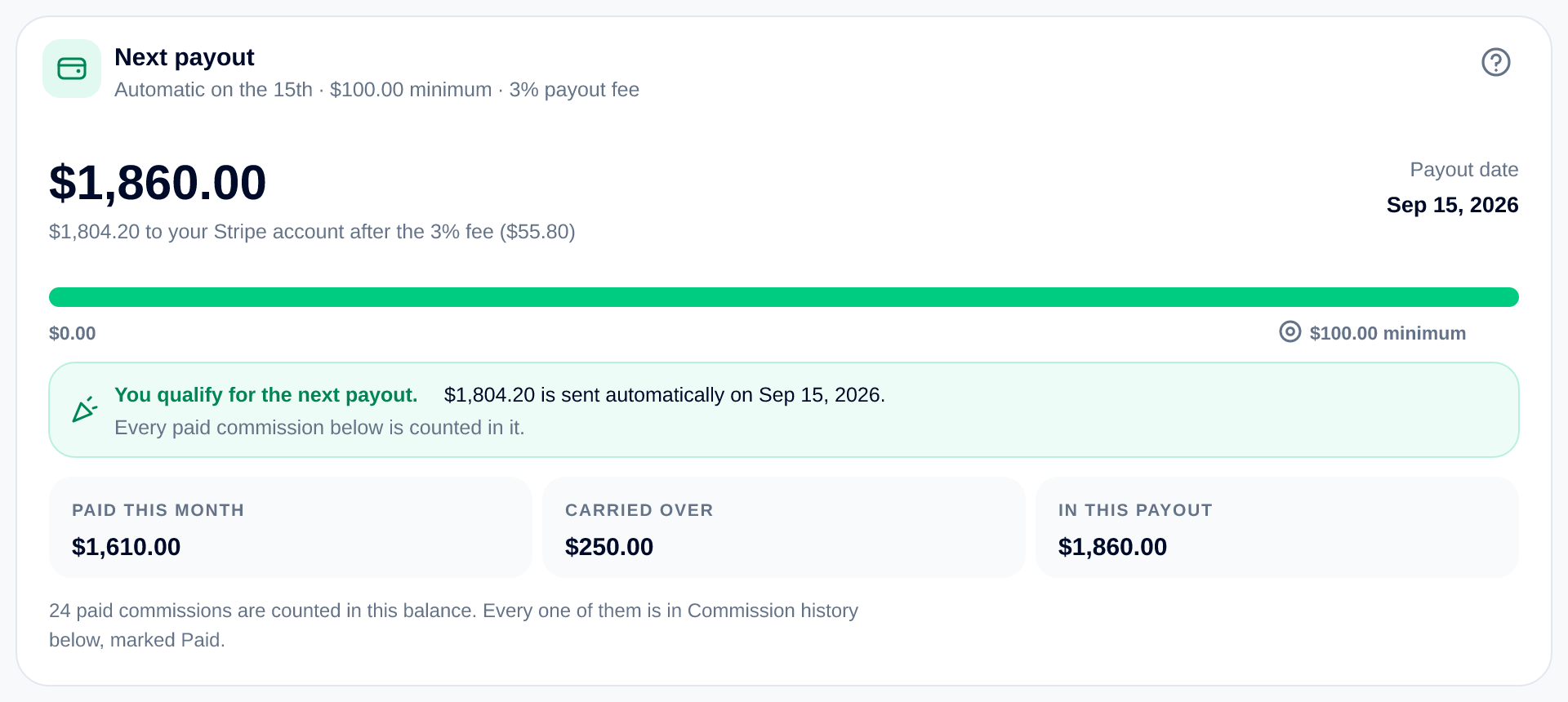
This panel is the balance from the third card, shown as a goal:
- The big number is the balance; every commission the advertisers have paid, and not yet transferred to you.
- Under it, the arithmetic is already done for you: what reaches your Stripe account after the 3% payout fee, with the fee itself in brackets. In the example, $1,860.00 becomes $1,804.20 after a $55.80 fee.
- Payout date on the right is the 15th the transfer would leave on.
- The bar fills towards the $100.00 minimum. It turns green the moment you clear it.
- The line below tells you where you stand; either you qualify, or exactly how much is still missing.
- Paid this month, carried over and in this payout, break the balance into new money and money that waited for you. The last line counts how many paid commissions are in there, and every one of them is in the table below marked Paid.
4. Under $100? Nothing is lost

If the balance has not reached $100.00 on the 15th, no transfer is raised, and the balance simply waits. It joins next month's commissions, and the month after that if it needs to. So a $58.50 balance is not a missed payout - it is $58.50 already on its way to your next one.
This is also why a good month is worth more than a busy one. If you are still working out which offers actually convert for your audience, our notes on creating high-converting content are a decent companion read.
5. The whole cycle, in six steps
The question mark in the corner of the Next payout panel opens the rule set; the same rules the numbers are calculated from.
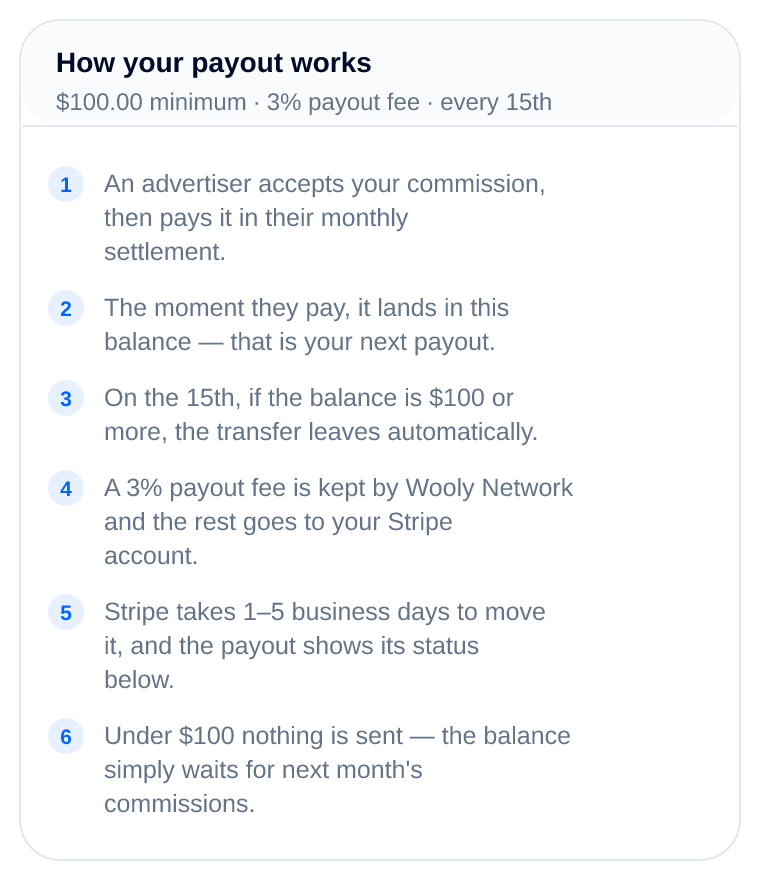
In plain terms: an advertiser accepts your commission and pays it in their monthly settlement, which drops it into your balance. On the 15th, from $100.00 up, the transfer leaves automatically, 3% is kept as the payout fee, and Stripe takes one to five business days to move the rest. Below the minimum, nothing is sent, and the balance rolls on.
How long the accept-to-pay step takes is set per campaign: each advertiser commits to a payment term of 30 or 60 days, and it is written on the offer page before you apply. Reading it there is part of reading an offer properly.
6. Payouts: the record of every transfer
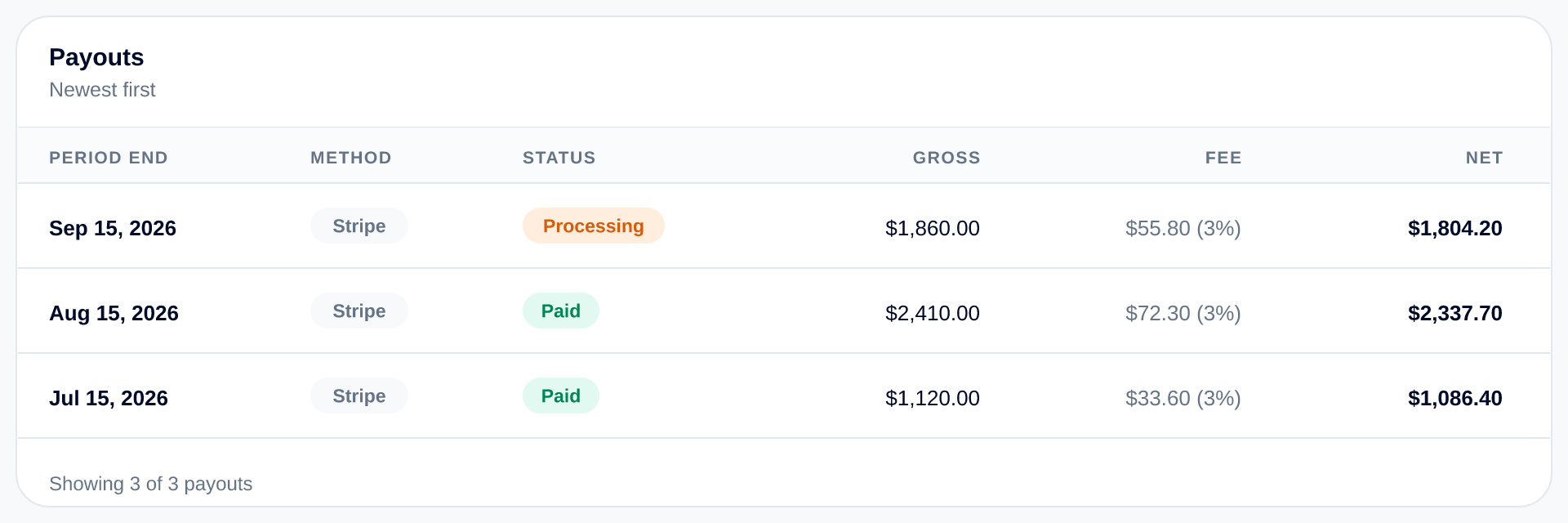
One row per transfer, newest first, eight per page. Reading the columns:
- Period end; the 15th the payout belongs to.
- Method; how it was sent. Only the method is ever shown here; account and card numbers never leave the server.
- Status; Processing means the transfer has been raised and Stripe is moving it, which takes one to five business days. Paid means Stripe has confirmed it arrived. Only Stripe can move a payout from one to the other.
- Gross; the balance the payout carried.
- Fee; the payout fee taken off, with its percentage next to it.
- Net; what actually reached your account. Add up every Paid row's net, and you have the Total Earnings card.
Before your first transfer, this table is empty, and it says so: your first payout appears here on the 15th, when your balance reaches $100.00.
7. Commission history: every status, explained
This is the bottom of the page and the source of everything above it: one row per conversion you produced, with whatever the advertiser decided on it.
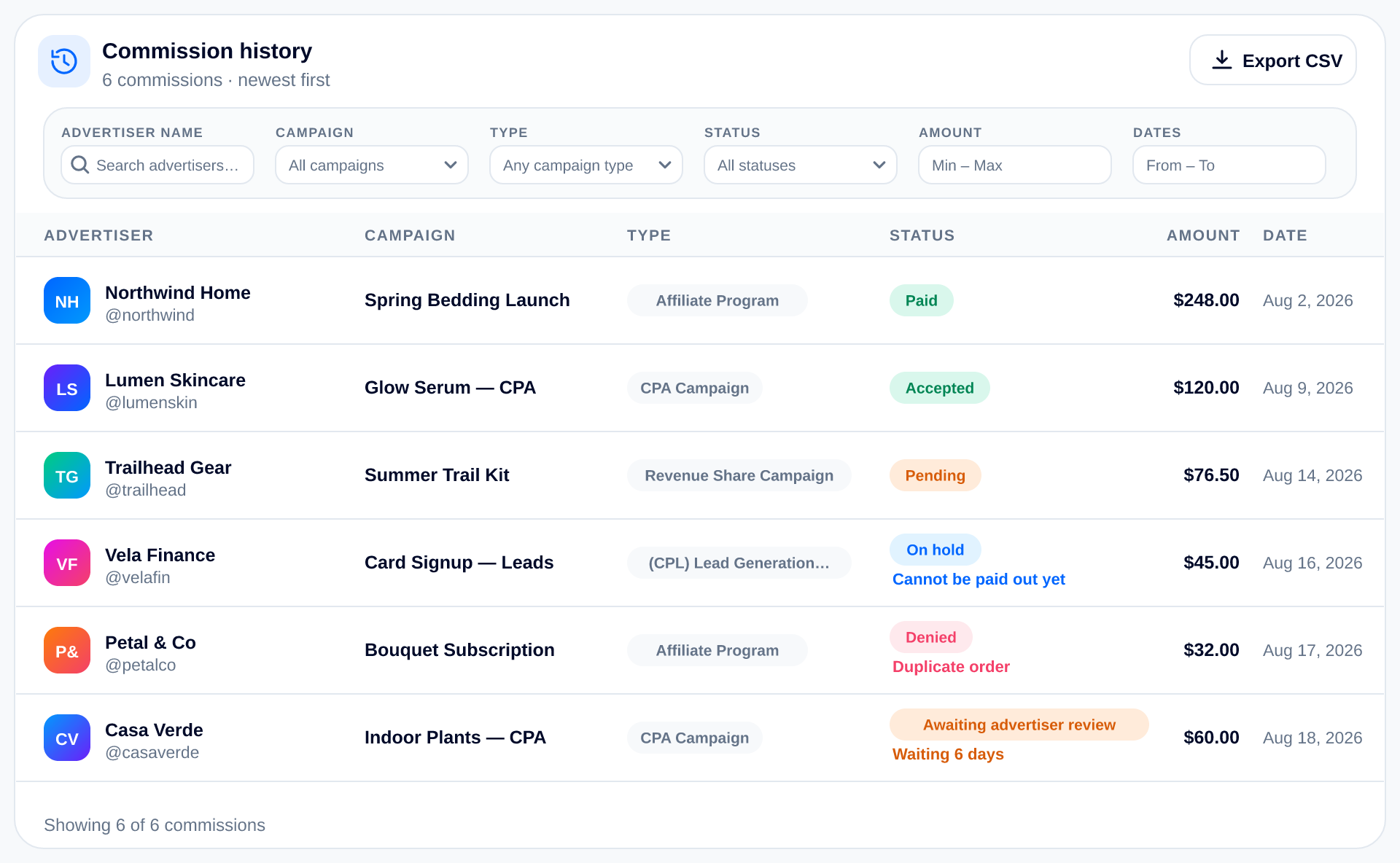
There are no buttons on these rows, because every decision belongs to the advertiser. What you can do is find things: filter by advertiser name, campaign, campaign type, status, an amount range and a date range, and export whatever the filters leave on screen as a CSV. Fifteen rows per page.
The statuses, in the order a commission travels through them:
- Pending; the conversion is recorded and the advertiser has not decided yet. Nothing is needed from you.
- Awaiting advertiser review; a pending commission whose advertiser's own account is under review, so their decisions are paused. The row shows how long it has been waiting. Your conversion keeps its place and is decided once the review is resolved.
- Accepted; agreed. It moves into your Payable Balance and waits for the advertiser's monthly settlement.
- On hold; temporarily paused while the advertiser checks it. It cannot be paid out until they resolve it, and it moves to accepted or denied once they finish.
- Denied; the advertiser declined it, and the row carries their reason and any note they left, kept on the record exactly as it was sent.
- Paid; settled by the advertiser. From this moment the money is yours and it is counted in your Next payout balance.
An example of the last step. A $248.00 commission is accepted in August; the advertiser settles it in September, so it turns Paid and joins your balance; the 15th after that, it leaves in a transfer with 3% withheld. Same $248.00, three different places on this page depending on the day you look.
8. When a status has something to read
Three statuses are more than a pill: On hold, Denied and Awaiting advertiser review each carry a short line under them, and tapping the pill opens the full explanation.
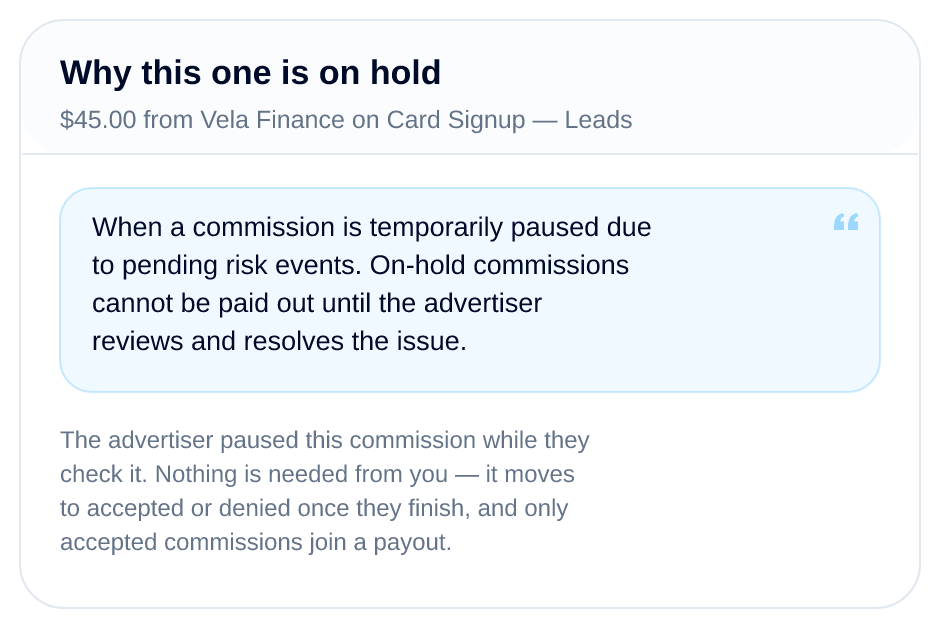
It is always worth opening. A denial shows the advertiser's own motive and note, a hold explains why it cannot be paid out yet, and a review explains why nobody has decided it. None of the three is something you did wrong by default; they are simply the advertiser's side of the record, shown to you in full.
9. Two lines you will hopefully never see
- Payouts are on hold, if your own account is under review, transfers are held rather than cancelled. The balance stays yours, keeps growing as advertisers pay the commissions you already earned, and all of it goes out on the first payout date after your account is restored.
- A shortfall; money already transferred that the commissions behind it no longer cover, for example when a campaign is removed. The panel names it out loud instead of quietly taking it out of your next earnings, and it says the same thing we would: this is not something you did, contact support and it will be looked at.
Good habits on this tab
- Connect Stripe first, and check the country is right, a wrong country fails the transfer.
- Read the balance, not just the total: Pending is hope, Payable is agreed, Next Payout is money on its way.
- Open any On hold or Denied row rather than guessing - the reason is right there.
- Export the CSV at the end of a month if you keep your own books.
- Check the payment terms on an offer before you apply, so you know when its commissions come due.
Your next payout starts today
Fill that bar with offers that fit you
Every commission on this page started as one offer you said yes to. Browse the live campaigns, apply free, and watch the balance do the rest.
Browse the marketplace →Related reading
- Creator Retainers: How Monthly UGC Deals Work and What to Charge — A creator retainer trades a lower per video rate for steady monthly work. Here is how to structure, price and end one without losing money on either side.
- How to Pitch Brands as a UGC Creator: Message Templates That Get Replies — Four copyable pitch templates for UGC creators, who to contact, what to attach, a follow up cadence, and why applying beats cold pitching most of the time.
- How to Build a UGC Portfolio That Gets You Hired (With Examples) — What brands actually scan for in a UGC portfolio, the six videos worth including, spec work ideas by niche, and the mistakes that get profiles skipped.
More from the Wooly Network Knowledge Library