How the Marketplace and My Campaigns tabs work
A step-by-step walk-through of the two tabs you live in: finding and applying to offers in the Marketplace, then following every campaign you joined, status by status in My Campaigns.
By Nora Ellis, Affiliate Marketing & Creator Economy Writer · with Wooly Network, Creator Success · 31 August 2026 · 8 min · Getting Started
These two tabs are the two halves of your day on Wooly Network. Marketplace is where you go looking; every live offer you can apply to, in one grid you can narrow down. My Campaigns is where everything you applied to lives afterwards, with its status, its numbers and your tracking link. Get comfortable with both and you always know what you can join next and what is already working.
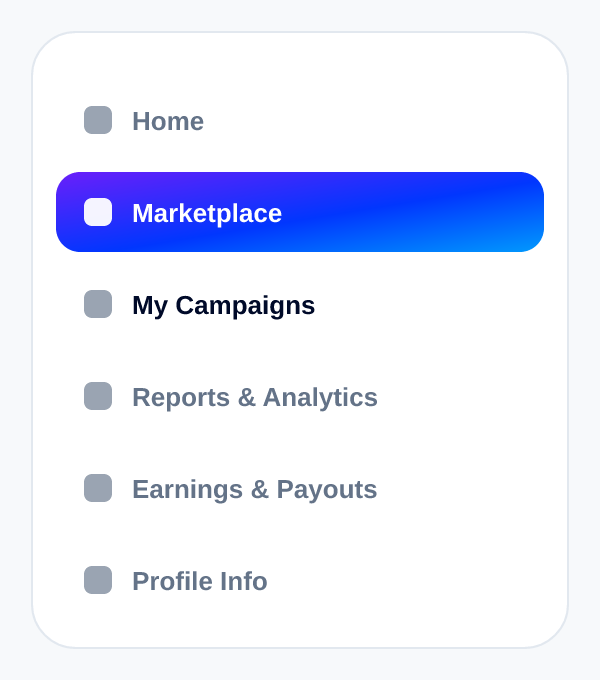
Both sit right at the top of your left sidebar, one under the other.
One thing before we start: both tabs need a finished profile. If yours is not complete yet, the tab shows you what is still missing instead of the grid, and it opens as soon as you fill it in.
Section 1: The Marketplace tab
Open Marketplace and you land on the catalogue: every campaign that is live and taking creators right now. The header says it plainly; Every live offer you can apply to; filter it down, then apply in one click.
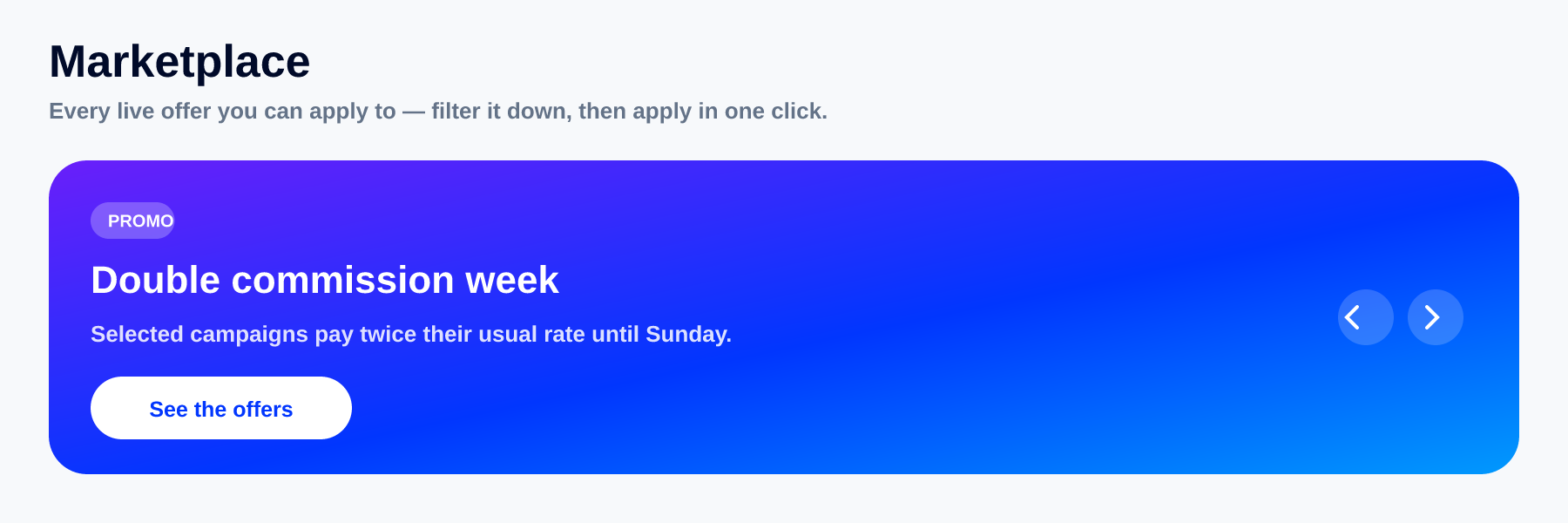
The wide rail at the top is the announcement carousel. It holds promos, platform updates and booked banner spots from advertisers, and it steps along on its own every few seconds; you can also nudge it with the two small arrows on the right, and it waits politely while you are reading it. It is worth a glance: a doubled-commission week or a new brand arriving usually shows up here first.
Where to look first: search and Filters
Under the rail is the one bar that controls the whole grid.

The search box takes an offer name, a brand or a category; type and the grid catches up with you after a moment, so you do not have to press anything. Next to it, Filters opens the full set, and the little number on the button is how many filters are doing something at that moment. Handy when you come back later and the grid looks thinner than you remember.
Below the bar, two lines you will use constantly: Showing 18 of 240 matching offers tells you how hard your filters are biting, and Sort by reorders what is left; Featured, Highest payout, Best EPC, Best CVR or Top rated.
How the filters work
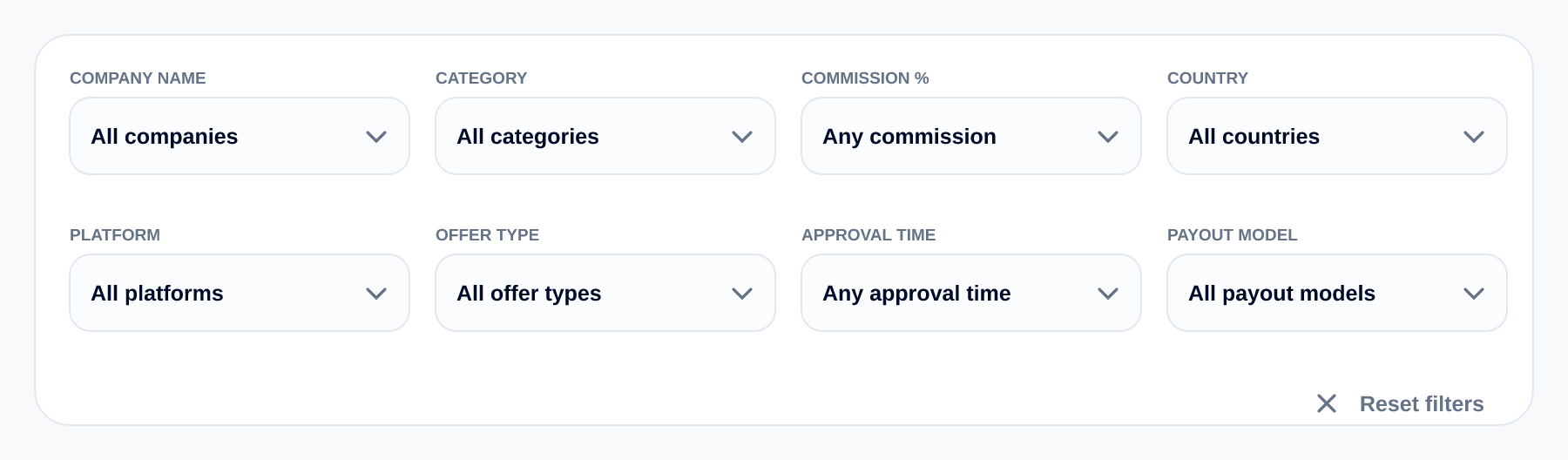
Eight dropdowns, and they stack: each one you set narrows what the others are choosing from:
- Company name; one advertiser only, when you already know who you want to work with.
- Category; the niche the campaign sits in, so you can stay in the space your audience trusts you in.
- Commission %; a floor rather than an exact figure: 10% or more, 20% or more, and so on.
- Country; where the campaign is looking for buyers.
- Platform; the channels a campaign accepts, like Instagram, TikTok or a newsletter.
- Offer type; what kind of thing you are promoting.
- Approval time; how quickly the advertiser answers applications.
- Payout model; how the campaign pays: a share of the sale, a fixed amount, and so on.
Reset filters in the corner clears the lot in one tap. It stays greyed out until something is actually set, so it can never surprise you.
Reading one offer card
Every result is one card, and every card carries the same things in the same places. Once you have read three of them you can read the whole grid at a glance.
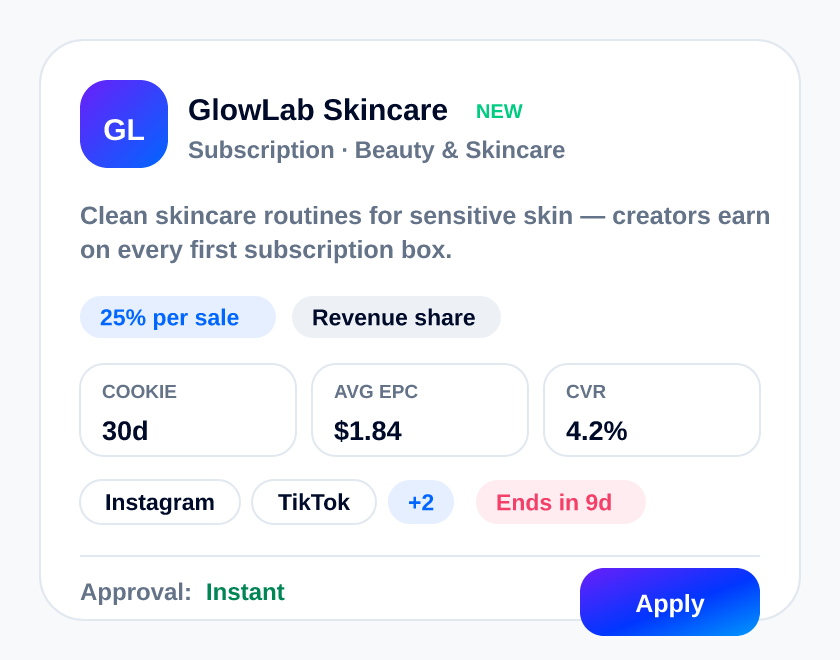
From the top:
- The logo and company name. A New flag next to it means the campaign has only just arrived.
- Under the name, the offer type and category on one line.
- A two-line summary of what the brand is selling and what they want.
- The commission chip and the payout model chip: what you earn, and on what basis.
- Three stats: Cookie is how many days after a click a purchase still counts as yours; Avg EPC is what one click has been worth on average on this campaign; CVR is how often clicks turn into results. Treat the last two as the campaign's track record, not a promise.
- A line of channel chips. A +2 chip means there are more channels than the line could fit, and an Ends in Xd chip appears when a campaign is inside its last two weeks.
- At the bottom, Approval: Instant or Manual. Instant means you are in straight away with your link ready; Manual means the brand reads your application first.
Then the Apply button. One tap and it is sent; the button turns into Applied with a tick, so you never wonder whether it went through. Everything you need to weigh a campaign properly, term by term, is in How to read an offer on Wooly Network.
When the grid comes back empty
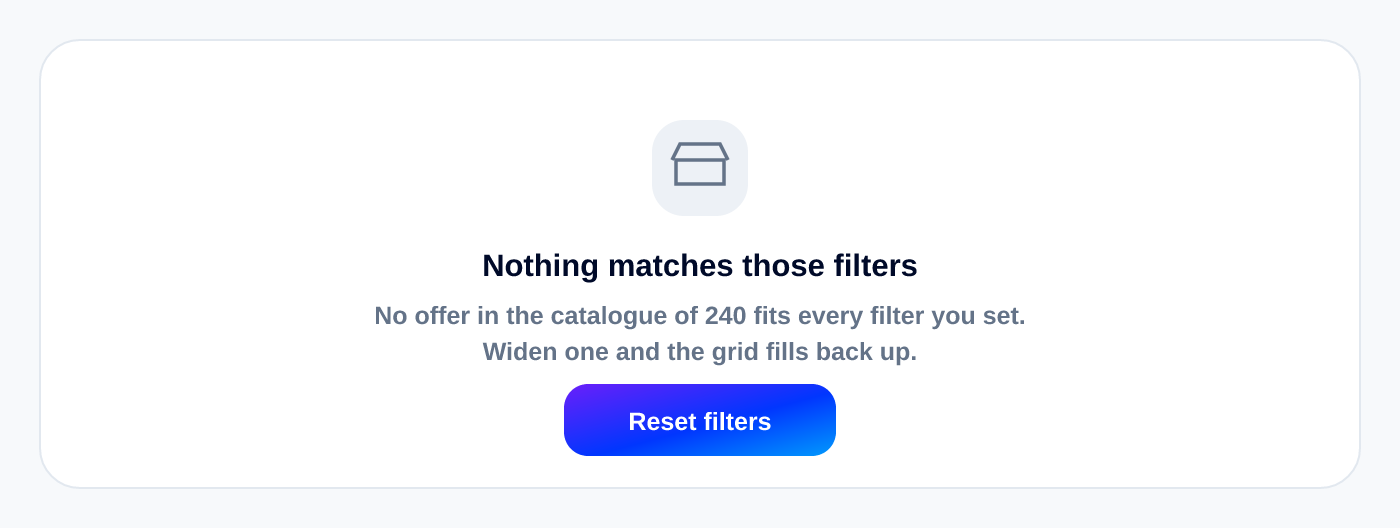
An empty grid is almost never an empty catalogue; it is filters that have crossed each other out. The page tells you as much, and counts the catalogue for you, so you know exactly what to loosen. Reset filters puts everything back.
Working through the pages

The grid shows fifty offers a page. The pager underneath walks you through them, and the box on the right lets you type a page number instead of clicking your way there.
Section 2: The My Campaigns tab
Everything you applied to lands here: Every campaign you have joined, with its status and tracking link. This is the tab to open when you want to know what you can promote today.
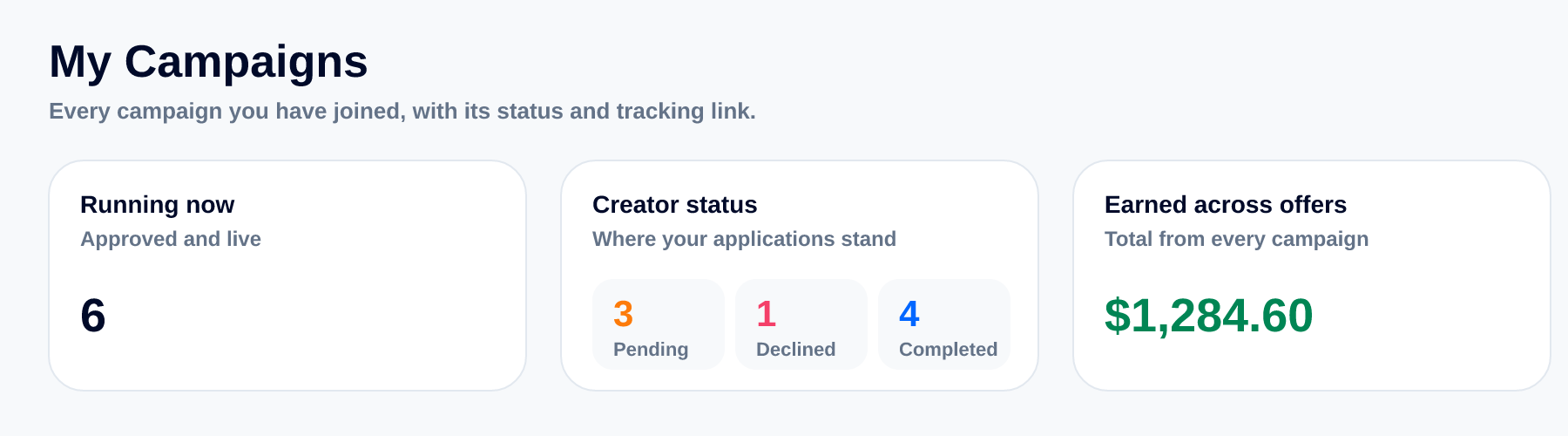
Three cards across the top, and all three count every campaign in the tab:
- Running now; Approved and live. The campaigns where you are approved and the campaign itself is running. These are the ones actually earning for you.
- Creator status; Where your applications stand, in three figures: Pending (still with the brand), Declined and Completed.
- Earned across offers; Total from every campaign, added up from the Earned column below.
Active and Archived, and how to narrow the list
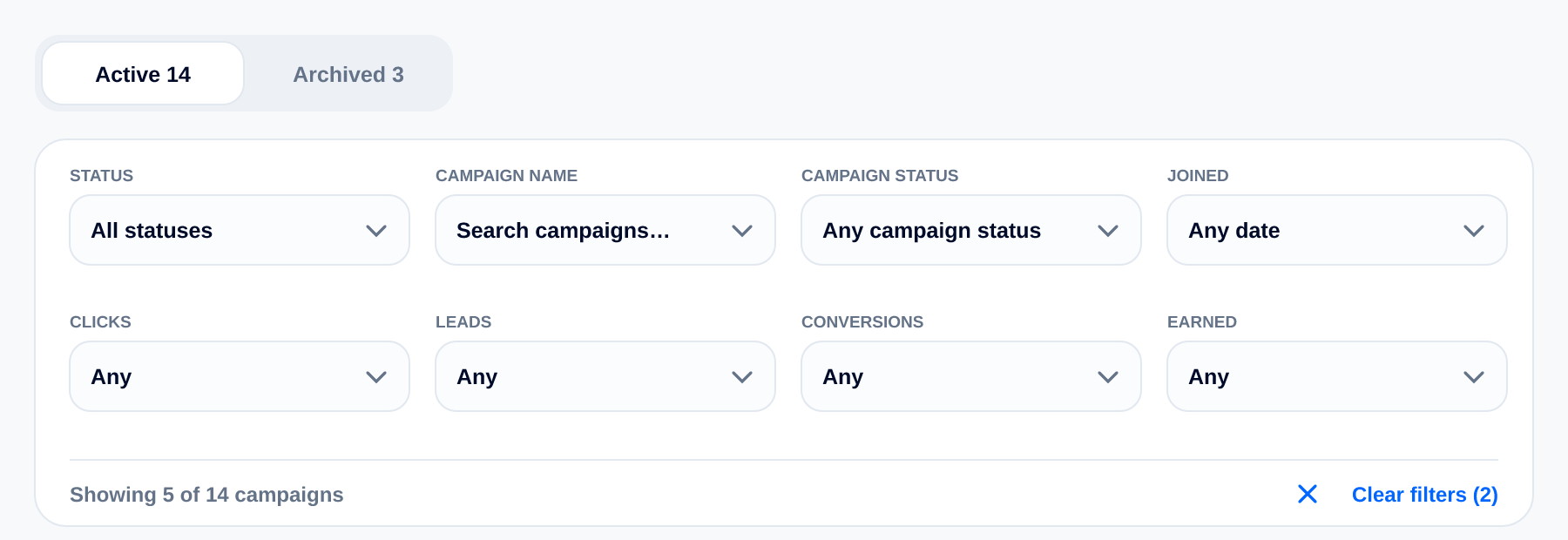
Just under the cards are two tabs with counts: Active and Archived. Archiving is only tidying, so both are always there even when one is empty.
The filter bar below works on whichever tab you are on:
- Status; your own standing: All statuses, Running, Awaiting approval, Completed, Declined.
- Campaign name; a search box for when the list is long.
- Campaign status; how the campaign itself is doing, including Not decided yet for applications the brand has not answered.
- Joined; the dates you came onto the campaign.
- Clicks, Leads, Conversions, Earned; a smallest and largest for each, for questions like "show me everything that earned something".
The footer keeps you honest about what you are looking at; Showing 5 of 14 campaigns, and Clear filters puts the full list back.
Reading the table
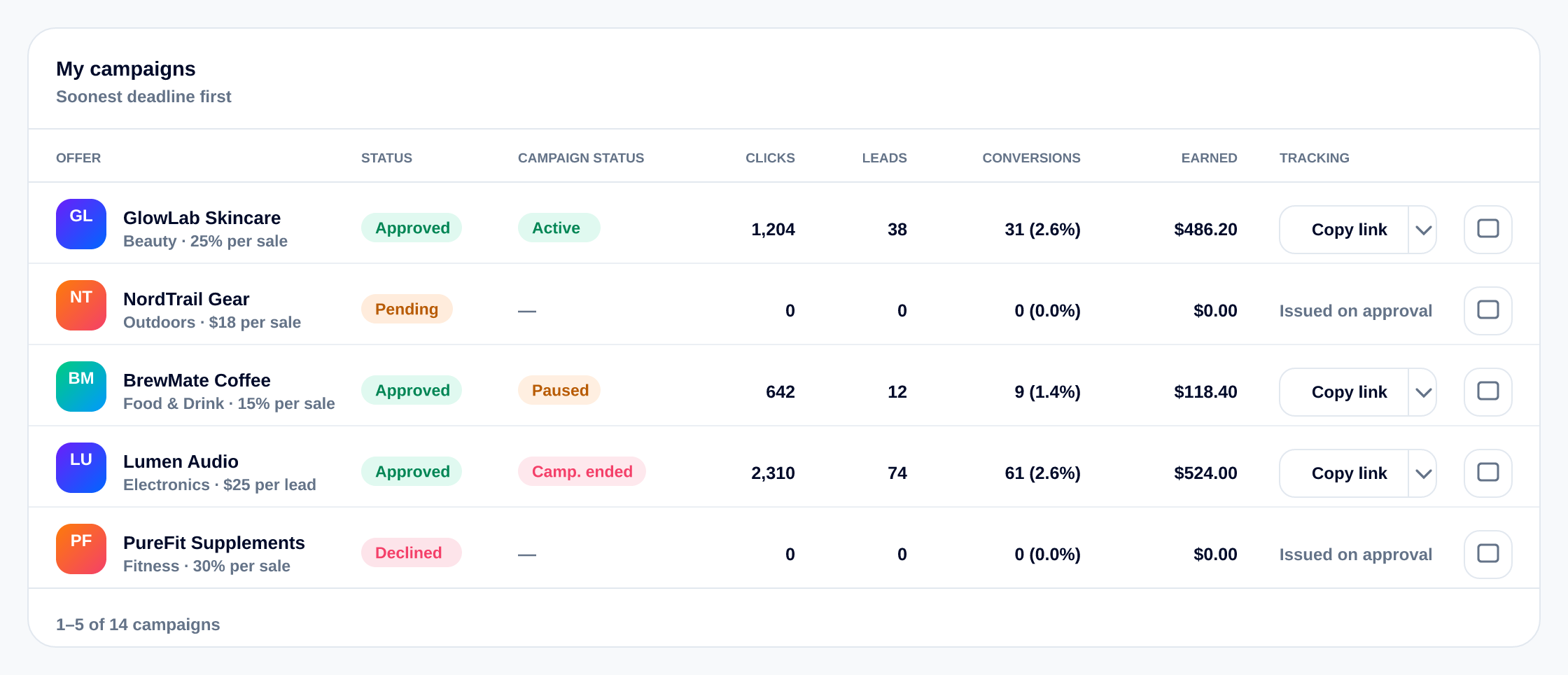
The panel is called My campaigns and it is sorted Soonest deadline first, so whatever is closest to ending sits at the top. Column by column:
- Offer; the brand, with its category and commission underneath. Tapping the name opens that campaign's own page.
- Status; your standing on the campaign: Pending while the brand decides, Approved once you are in, Completed when your part is done, Declined if they said no. A decline usually carries a note from the brand; the pill has a See the reason line and one tap opens it, so you know what to do differently next time.
- Campaign Status; how the campaign is doing, which is a separate question. All of these are covered just below.
- Clicks; the traffic your link sent.
- Leads; counted the way this campaign's payout model counts them.
- Conversions; the results that count, with their share of your clicks in brackets.
- Earned; your commission on that campaign so far.
- Tracking; your link. On an application still waiting it reads Issued on approval, because the link is created the moment you are approved.
Twenty-five campaigns fit a page, and the pager at the bottom tells you where you are; 1–5 of 14 campaigns.
For the same numbers plotted over the dates you choose, with a daily trend and your best campaigns ranked, go to How the Reports & Analytics tab works.
Every campaign status, and what it means for you
This is the column creators ask about most, so here is all of it in one place. Your Status can say Approved while the Campaign Status says something else entirely; that is normal: you are approved, but the campaign behind you has its own life.
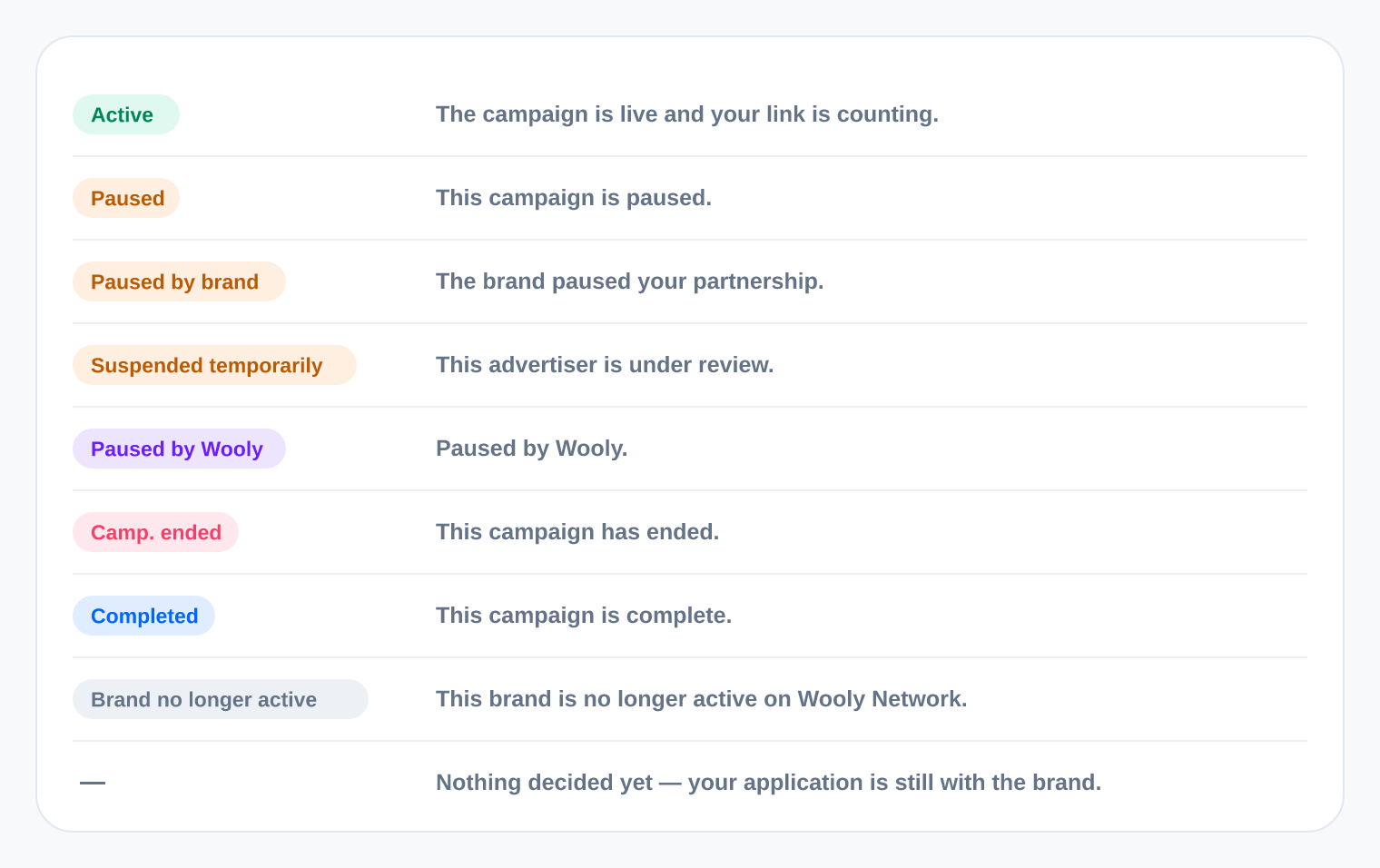
- Active; the campaign is live. Your link counts every click and every conversion. This is the one you want.
- Paused; the brand has paused the campaign. Nothing is counted while it is paused, and you are told when it comes back.
- Paused by brand; the campaign is still running for others, but this brand has paused your partnership on it. Everything you already earned stays yours and is still being paid.
- Suspended temporarily; the advertiser's account is under review, so the campaign is on hold. It has a way back, and your earnings on it are safe.
- Paused by Wooly; we have paused the campaign from our side. Same rule: nothing counts while it is paused.
- Camp. ended; the campaign is over. New conversions will not count, and what you already earned is recorded.
- Completed; the campaign is finished and closed out. The link no longer records anything.
- Brand no longer active; the brand has left Wooly Network. This one does not come back.
- - an em dash means nothing has been decided yet: your application is still with the brand, so the campaign has no standing to report to you.
Where a standing needs explaining, the pill carries a See the reason line and the brand's own note opens in a small window. Always read it before you change anything about your posts.
Your tracking link
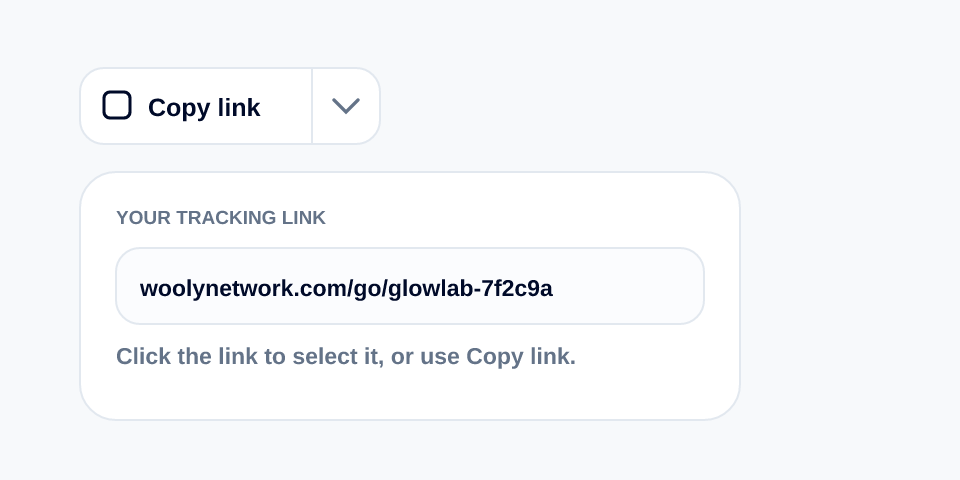
Copy link copies it in one tap, and the small caret next to it shows the link itself in a read-only field if you would rather select it by hand. The link is yours alone, per campaign; it is what ties a sale back to you, so use it everywhere and never rewrite it.
One nice touch: if you copy the link on a campaign that is paused, ended, completed or where the brand paused you, the confirmation says so instead of just saying "copied". That way you never promote a campaign that is not counting. Putting those links to work is what How to create high-converting content is about.
Archiving, and getting it back
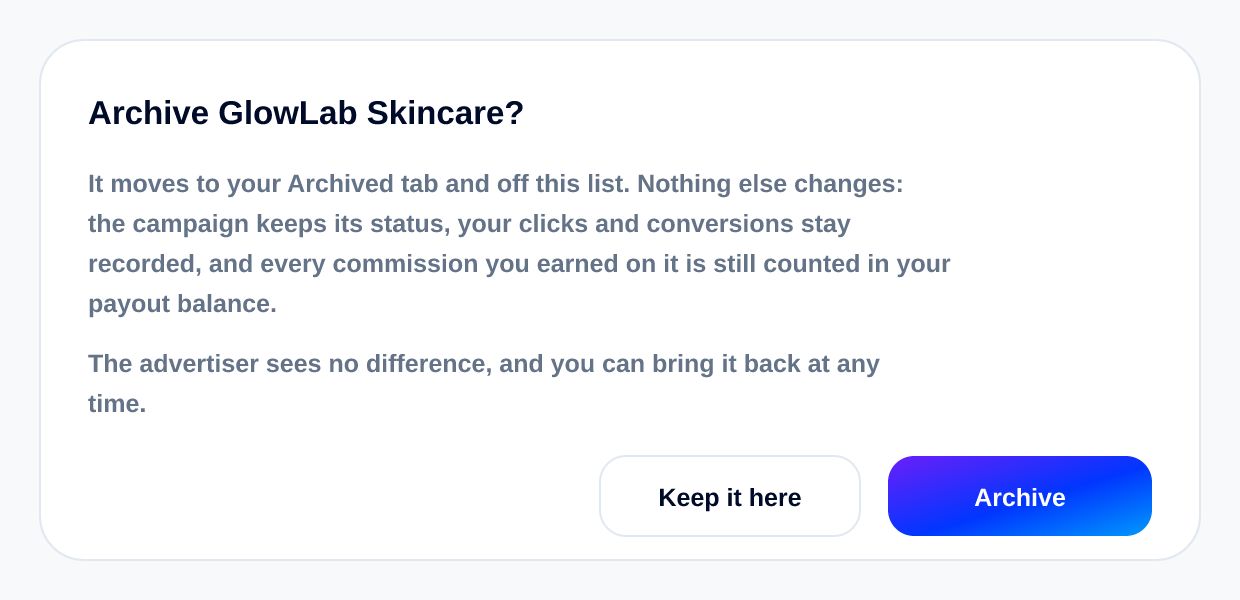
The last column on each row is the archive control, and it asks before it does anything. Archiving moves a campaign to your Archived tab and off the Active list, and that is all it does. The campaign keeps its status, your clicks and conversions stay recorded, and every commission you earned is still counted in your payout balance. The advertiser sees no difference, and one tap on the Archived tab brings it back.
Use it for finished campaigns you no longer want to scroll past. Your money is never affected; you can follow it all the way to your bank in Understanding the Earnings & Payouts tab.
When the tab is empty
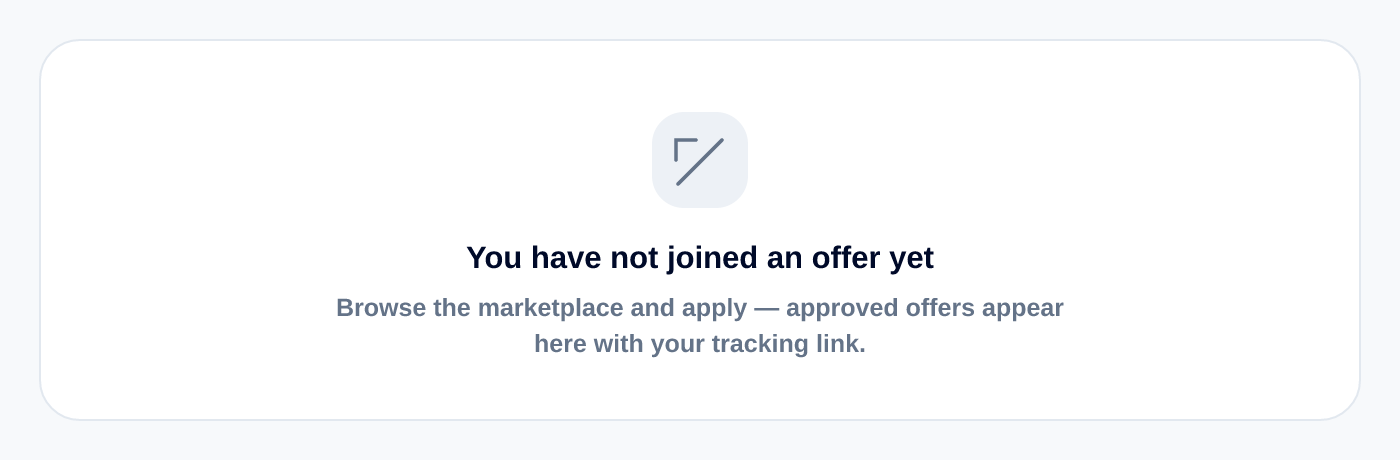
Each empty view tells you which kind of empty it is, so you always know the next move:
- You have not joined an offer yet; nothing applied to so far. Head to the marketplace and apply; approved offers appear here with your link.
- Every campaign is archived; they are all on the Archived tab, ready to be brought back.
- Nothing in this view; you have campaigns, but your filters are hiding them. Widen or clear them.
- Nothing archived; you have not put anything away yet.
The two tabs together, in a minute
- Open Marketplace, glance at the rail, then filter down to what fits your audience.
- Read a card top to bottom: terms, cookie, EPC, CVR, channels, approval. Apply.
- Instant approval puts you straight into My Campaigns; manual approval shows up there as Pending.
- Once you are Approved and the campaign is Active, copy your link and start posting.
- Come back to check Status and Campaign Status before every push: a paused campaign is not counting.
- Archive what is finished, so the list stays about what you are working on now.
Ready when you are
Your next campaign is one filter away
Open the marketplace, narrow it down to the offers that fit your audience, and apply. Everything you join shows up in My Campaigns with your tracking link.
Browse the marketplace →Related reading
- How to connect the server webhook — Report sales your tag cannot see (renewals, late captures, phone orders) with a signed call from your own server, and read every reply it gives back.
- How to install your tracking tag — The complete guide to the Integration setup page: copy the tag, paste it into your site, prove it works, and read every status on the page.
- How to track app installs — Promoting a phone app? Forward every install from AppsFlyer, Adjust or Branch to us in three steps: with every status on the page explained.
More from the Wooly Network Knowledge Library